
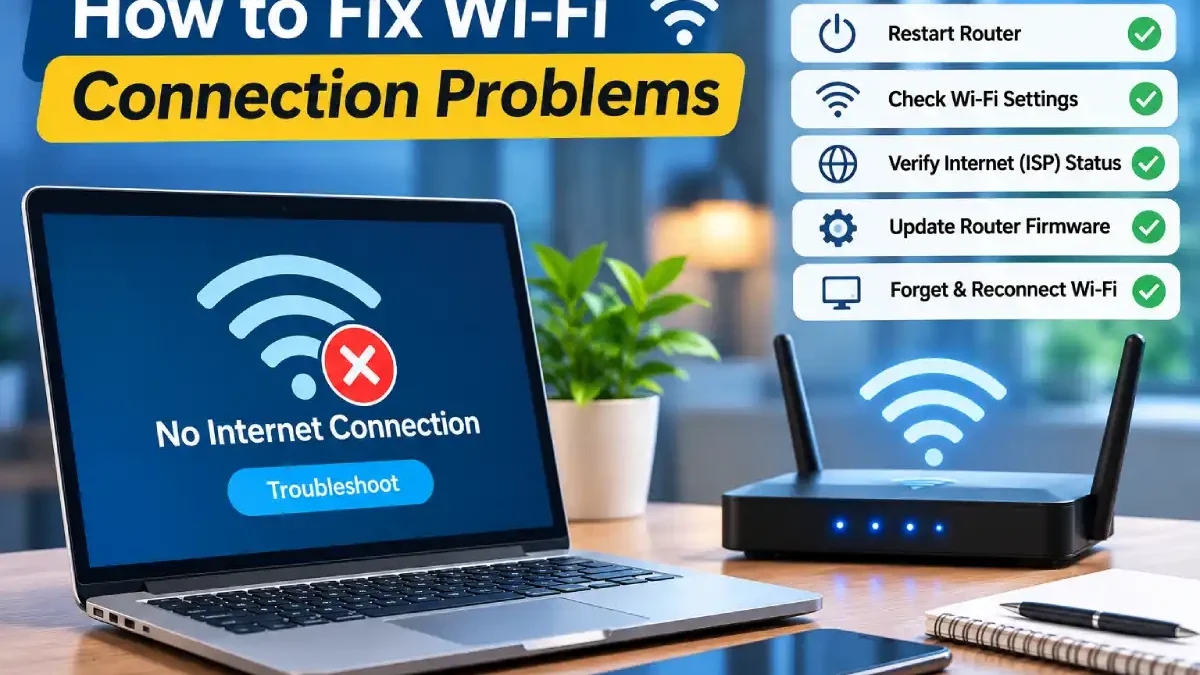
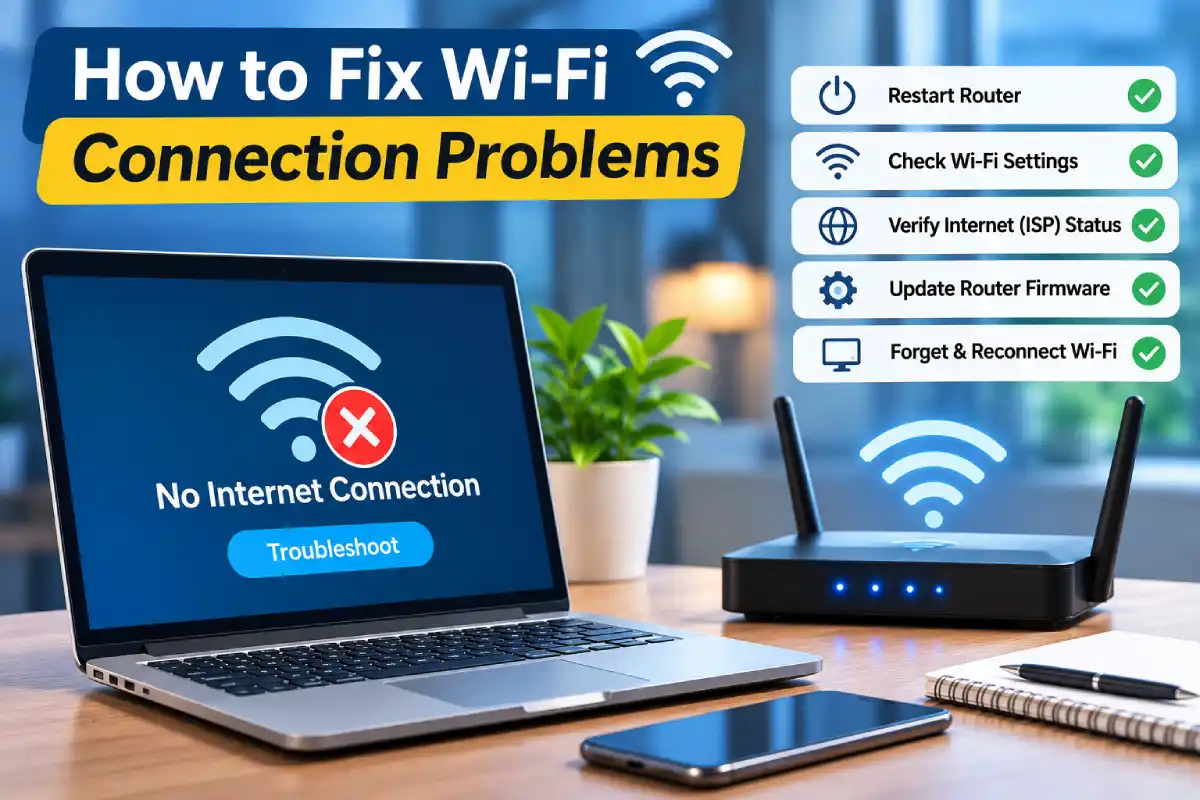
A slow internet connection can quickly become frustrating, especially when you are working from home, attending an online meeting, watching videos, or playing games. Sometimes your phone connects to Wi-Fi without any trouble, but your laptop refuses to connect. In other situations, every device suddenly loses internet access even though the router appears to be working normally.
If you are wondering how to fix Wi-Fi connection problems, the first thing to understand is that not every connection issue has the same cause. A weak wireless signal, outdated network driver, router configuration problem, internet service provider outage, or incorrect network settings can all affect your connection.
The good news is that many Wi-Fi problems can be resolved without replacing your router or calling a technician.
In this guide, we will look at how to identify common Wi-Fi symptoms, check router and ISP status, test signal strength, reduce wireless interference, reset network settings safely, and prevent recurring connection failures.
Table of Contents
1. Identify Wi-Fi Symptoms Before Troubleshooting
Before changing router settings or resetting your network, identify exactly what is happening.
This makes troubleshooting easier because different symptoms often point toward different problems.
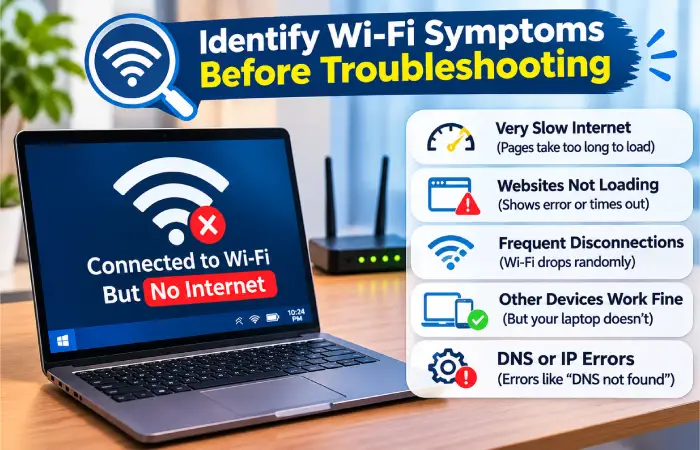
Wi-Fi Connected but No Internet
One of the most common problems occurs when a device connects to the wireless network but cannot access the internet.
You may see messages such as:
- Connected, no internet.
- No internet access.
- Limited connectivity.
- Internet unavailable.
This usually means your device has established a wireless connection with the router, but the router may not have a working internet connection.
Possible causes include an ISP outage, modem problem, incorrect DNS settings, or a router configuration issue.
Wi-Fi Keeps Disconnecting
If your laptop or smartphone repeatedly disconnects from Wi-Fi, the problem may involve weak signal strength, wireless interference, router instability, or power-saving settings.
It can also happen when a device switches between available networks or access points.
Wi-Fi Is Connected but Very Slow
A connection can remain active while delivering poor speeds.
Common reasons include:
- Too many connected devices.
- Weak wireless signal.
- Network congestion.
- Background downloads.
- Router limitations.
- ISP speed restrictions.
Some Devices Connect While Others Do Not
If your phone works perfectly but your computer cannot connect, the issue may be limited to the computer.
Possible causes include outdated Wi-Fi drivers, incorrect saved passwords, incompatible security settings, or a disabled wireless adapter.
Wi-Fi Network Is Not Showing
Sometimes your wireless network disappears from the available networks list.
Check whether the router is powered on and broadcasting its wireless network. Also consider whether the router is configured to hide its SSID or whether your device supports the selected Wi-Fi frequency band.
Understanding the symptom is the first step toward finding the correct solution.
2. Check Your Router and ISP Status
A router problem or internet service outage can affect every connected device.
Before making changes to your computer, check whether the internet connection itself is working.
Restart Your Router and Modem
Restarting network equipment can resolve temporary connection problems.
Follow these steps:
- Save your work and disconnect any ongoing downloads.
- Turn off your router.
- If you have a separate modem or ONT, turn it off as well.
- Wait approximately 30 seconds.
- Turn on the modem or ONT first.
- Allow it to establish its connection.
- Turn on the router.
- Wait for the Wi-Fi network and internet connection to become available.
Some fiber connections use an optical network terminal (ONT) rather than a traditional cable modem.
Avoid pressing the router’s factory Reset button during this process. A normal restart and a factory reset are different operations.
Check Router Indicator Lights
Most routers include indicator lights that show their operating status.
| Indicator | What it generally means | What to check |
|---|---|---|
| Power | Router power status | Power adapter and electrical connection |
| Wi-Fi/WLAN | Wireless network status | Wireless broadcasting settings |
| Internet/WAN | Internet connection status | Router-to-modem or ISP connection |
| LAN | Wired device connection | Ethernet cable and connected device |
| LOS on fiber ONT | Possible optical signal problem | Fiber connection and ISP support |
The meaning of individual lights varies by manufacturer. Check your router or ONT manual for the correct interpretation.
Check Whether Your ISP Has an Outage
Sometimes your router is working correctly, but your internet provider is experiencing a service interruption.
Contact your ISP or check its official outage notifications.
If you are using a fiber connection, check whether the ONT displays an optical signal warning.
In India, for example, users may receive broadband services through providers such as Airtel, JioFiber, ACT, or BSNL. Their support applications and customer-service channels can help confirm service disruptions.
If the ISP confirms an outage, changing your computer’s network settings will not restore the connection.
Test the Connection Using Ethernet
If possible, connect a laptop directly to the router using an Ethernet cable.
If the wired connection works but Wi-Fi does not, the problem is more likely related to wireless configuration, signal quality, or the device’s Wi-Fi adapter.
If both wired and wireless connections fail, investigate the modem, router, or ISP connection.
3. Test Wi-Fi Signal Strength and Interference
Wireless signal quality plays a major role in connection stability.
Even a fast broadband plan can feel slow when your device receives a weak or unstable Wi-Fi signal.
Check Your Distance from the Router
Wi-Fi signals become weaker as the distance between the router and connected device increases.
Walls, floors, furniture, and other obstacles can reduce signal quality.
For better coverage:
- Place the router in a central location.
- Keep it away from thick concrete walls.
- Avoid placing it inside closed cabinets.
- Position it away from large metal objects.
- Keep it elevated when practical.
- Avoid hiding it behind televisions or appliances.
A router placed in one corner of a large house may not provide reliable coverage in every room.
Understand 2.4 GHz and 5 GHz Wi-Fi
Most modern dual-band routers support both 2.4 GHz and 5 GHz wireless networks.
They have different characteristics.
| Feature | 2.4 GHz | 5 GHz |
|---|---|---|
| Coverage | Generally longer range | Generally shorter range |
| Wall penetration | Usually better | Usually weaker |
| Speed potential | Lower | Higher |
| Interference | Often more crowded | Often less crowded |
| Best use | Distant rooms and basic devices | Nearby devices and high-speed activities |
Some newer routers also support 6 GHz Wi-Fi through Wi-Fi 6E or Wi-Fi 7 equipment.
Choose the band based on your device’s location and wireless capabilities.
Check for Wireless Interference
Other electronic devices and nearby wireless networks can interfere with Wi-Fi performance.
Common sources include:
- Bluetooth devices.
- Microwave ovens.
- Wireless cameras.
- Nearby routers.
- Certain cordless devices.
- Poorly positioned wireless access points.
The 2.4 GHz band is particularly susceptible to congestion because many devices use it.
If your router supports channel selection, try a less congested channel.
For 2.4 GHz networks, channels 1, 6, and 11 are commonly used to reduce overlap in many regions. However, the best channel depends on local network conditions and regulatory settings.
Measure Wi-Fi Signal Strength
You can use your device’s built-in Wi-Fi indicator or a reputable Wi-Fi analyzer to examine signal quality.
On Windows, open Command Prompt and enter:
netsh wlan show interfacesReview the output for signal information, connection speed, and wireless details.
A weak signal may explain why your connection becomes unreliable when you move farther away from the router.
4. Restart and Troubleshoot Your Windows Network Adapter
If other devices connect successfully but your Windows computer does not, investigate its wireless adapter.
Turn Wi-Fi Off and On
Start with the simplest option.
- Open Windows Settings.
- Select Network & internet.
- Turn Wi-Fi off.
- Wait a few seconds.
- Turn Wi-Fi back on.
- Reconnect to your network.
Also check that Airplane mode is disabled.
Forget and Reconnect to the Network
A saved Wi-Fi profile may contain an outdated password or incorrect network configuration.
To create a fresh connection:
- Open Settings.
- Select Network & internet.
- Choose Wi-Fi.
- Open Manage known networks.
- Select your wireless network.
- Click Forget.
- Search for available Wi-Fi networks.
- Select your network and enter the password again.
This removes the saved connection profile, so make sure you know the correct Wi-Fi password before proceeding.
Update the Wi-Fi Driver
An outdated or damaged wireless driver can cause connection failures.
To check your driver:
- Right-click the Start button.
- Open Device Manager.
- Expand Network adapters.
- Find your wireless adapter.
- Right-click it.
- Select Update driver.
You can also check the laptop or adapter manufacturer’s official support website for compatible drivers.
Avoid downloading network drivers from unidentified websites.
If the problem started immediately after a driver update, check whether Device Manager offers a Roll Back Driver option.
5. Reset Network Settings Safely
If normal troubleshooting does not work, resetting network settings may help.
However, understand what each reset does before proceeding.
Use Windows Network Troubleshooter
Windows includes built-in diagnostic tools that can identify certain network problems.
Open Settings → System → Troubleshoot → Other troubleshooters.
Find Network and Internet or the relevant network troubleshooter, depending on your Windows version.
Follow the instructions displayed on the screen.
Reset Network Configuration Using Command Prompt
If you are experiencing problems with network configuration, the following commands may help.
Open Command Prompt as administrator.
Run these commands individually:
ipconfig /flushdnsThis clears the local DNS resolver cache.
Next:
ipconfig /releaseThis releases the current DHCP-assigned IP address.
Then:
ipconfig /renewThis requests a new IP address from the network’s DHCP server.
You can also reset the Winsock catalog:
netsh winsock resetRestart Windows after completing the necessary commands.
These steps can resolve certain DNS, IP configuration, and network software problems. They will not fix a broken router or ISP outage.
Use Windows Network Reset
Windows also offers a broader network reset option.
On supported Windows versions:
- Open Settings.
- Select Network & internet.
- Open Advanced network settings.
- Select Network reset.
- Click Reset now.
- Restart your computer.
Network Reset removes and reinstalls network adapters and restores several network settings to their defaults.
You may need to reconnect to Wi-Fi and reinstall or reconfigure certain networking software afterward.
If you use a VPN, static IP configuration, or custom DNS settings, record those settings before resetting.
6. Prevent Recurring Wi-Fi Connection Failures
Fixing a connection problem is useful, but preventing it from happening again saves time.
A few basic maintenance habits can improve network reliability.
Keep Router Firmware Updated
Router manufacturers release firmware updates to address security vulnerabilities, improve compatibility, and correct software bugs.
Check the manufacturer’s official website or router administration interface for available updates.
Before installing firmware:
- Confirm the exact router model.
- Download firmware from the official manufacturer.
- Read the installation instructions.
- Avoid interrupting the update.
- Back up router settings if supported.
Do not install firmware intended for another router model.
Use a Strong Wi-Fi Password
A weak password can allow unauthorized devices to connect to your network.
Use a strong, unique password and modern wireless security such as WPA2-AES or WPA3 when supported.
Avoid outdated security protocols such as WEP.
Monitor Connected Devices
Check the router’s connected-device list occasionally.
If you find an unfamiliar device, verify that it does not belong to a family member, guest, or smart-home product before taking action.
If you suspect unauthorized access, change the Wi-Fi password and reconnect your trusted devices.
Avoid Router Overheating
Routers generate heat during normal operation.
Keep the device in a ventilated area and avoid placing it near other heat-producing electronics.
An overheating router may become unstable or restart unexpectedly.
Use a Mesh System or Wi-Fi Extender When Needed
If your home has multiple floors or distant rooms, a single router may not provide enough coverage.
A mesh Wi-Fi system can improve coverage by using multiple access points.
A Wi-Fi extender can also help in certain situations, although performance depends on its placement and connection quality.
Place an extender where it can still receive a good signal from the main router rather than in the area where the signal has already disappeared.
7. When Should You Contact Your Internet Service Provider?
Some connection problems cannot be fixed through device settings.
Contact your ISP if:
- Every connected device loses internet access.
- The modem or ONT repeatedly displays an optical or connection warning.
- Your connection drops several times every day.
- Wired and wireless connections both fail.
- Your broadband speed remains far below the subscribed plan after basic checks.
- The router cannot establish an internet connection.
Before contacting support, collect useful information:
- Your broadband account details.
- Router and ONT model numbers.
- Approximate time the problem started.
- Relevant indicator-light status.
- Results of wired and wireless tests.
- Screenshots of error messages.
This information can help support staff investigate the problem more efficiently.
Frequently Asked Questions About Wi-Fi Connection Problems
1. Why is my Wi-Fi connected but there is no internet?
Your device may be connected to the router, but the router may not have internet access. Check your ISP status, modem or ONT indicator lights, and router connection.
2. How do I fix Wi-Fi connection problems quickly?
Restart your router, check your ISP connection, toggle Wi-Fi on your device, and reconnect to the network. If the problem continues, investigate signal strength and network settings.
3. Why does my Wi-Fi keep disconnecting?
Common reasons include weak signal strength, wireless interference, outdated drivers, router instability, and incorrect power-saving settings.
4. Why is my Wi-Fi slow even with a fast internet plan?
Your device may be receiving a weak signal, sharing bandwidth with other users, or experiencing wireless interference. Test the connection near the router and compare wired and wireless speeds.
5. Should I restart my router every day?
Daily restarts are not normally necessary. A restart can help resolve temporary problems, but repeated disconnections may indicate a deeper issue that needs investigation.
6. Does changing the Wi-Fi password fix connection problems?
Changing the password can help if unauthorized devices are using your network. However, it will not resolve an ISP outage, weak signal, or damaged router.
7. Which Wi-Fi frequency is better, 2.4 GHz or 5 GHz?
Use 2.4 GHz for longer-range coverage and 5 GHz for higher potential speeds at shorter distances. Actual performance depends on the router, device, interference, and surroundings.
8. Can an outdated Wi-Fi driver cause internet problems?
Yes. An outdated, incompatible, or damaged driver can cause connection failures, slow speeds, and unexpected disconnections.
9. Does Windows Network Reset delete my personal files?
No. Network Reset is designed to reset networking components and settings, not personal documents or photographs. However, you may need to reconnect to Wi-Fi and reconfigure VPN or other network settings.
10. How can I improve Wi-Fi coverage throughout my house?
Place your router centrally and in an open location. For larger homes, consider a properly positioned mesh system or Wi-Fi extender.
Final Thoughts
Knowing how to fix Wi-Fi connection problems makes everyday internet issues much easier to handle. Most connection failures do not require an expensive router replacement or complicated technical repairs. Often, the cause is something simple, such as a temporary router issue, weak signal, incorrect saved network settings, or an ISP interruption.
Start by identifying the symptoms and checking whether the problem affects one device or your entire network. Then investigate the router, ISP status, signal strength, and wireless adapter before making major configuration changes.
If basic troubleshooting does not work, use Windows network diagnostic tools and reset options carefully. Remember to protect custom network settings before performing a full network reset.
Finally, keep your router firmware and device drivers updated, use strong wireless security, and position your router where it can provide reliable coverage.
A stable Wi-Fi connection is not just about having a fast broadband plan. Proper router placement, healthy network equipment, and regular maintenance all play an important role in keeping your internet connection reliable.