
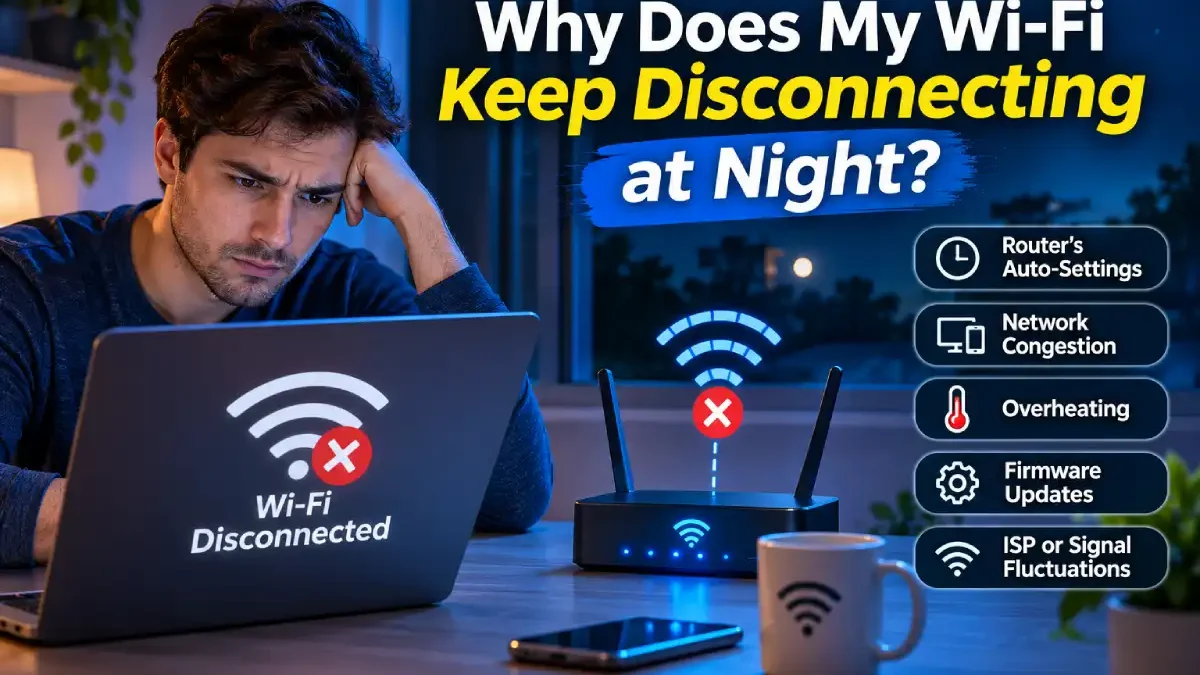
Why does my Wi-Fi keep disconnecting at night when it was working fine in the daytime? We all have our bad tech habits, and whether you’re watching a movie, at an online meeting, or surfing the web at night, at some point, your WiFi disconnects.
It’s actually pretty strange because, sometimes, that’s precisely what happens, and your Wi-Fi will resume working the very next morning without you having to do a thing.
Your problem may stem from any of the following: The router is resetting itself automatically, the network in your neighborhood is extremely busy, or your ISP is doing maintenance. Power management is interfering with your wireless connection.
In this step-by-step guide, I will show you why your Wi-Fi keeps disconnecting at night and walk you through some easy methods for finding and fixing the problem without causing more issues by tweaking the settings.
Table of Contents
Why Does My Wi-Fi Keep Disconnecting at Night?
Learn to check your connection before exploring other options.
You may be turning off your Wi-Fi or your computer daily at the same time. If you notice this happening, see if it coincides with an automatic setting or network task.
Here are some common reasons:
- Pre scheduled router reset: Your router might reset itself overnights.
- Network congestion: The high use of internet at night may influence connection quality.
- ISP maintenance: They might be performing maintenance while enhancing or fixing certain equipment.
- Power-saving modes: Some settings in the router can diminish the wireless activity.
- Overheating: Routers that do not have adequate cooling could become unstable after extended periods of use.
- Wireless disruption: The good, the bad and the ugly Wireless interference: Those other Wi-Fi networks and devices hanging around may interfere with your signal.
The best approach is to identify when the connection drops and whether all connected devices experience the same problem.
1. Check Scheduled Router Restarts
One thing I recommend checking first is if your router is configured to restart automatically on a set schedule.
There are some newer routers that will have the ability of scheduling the auto restarting of the device at a scheduled time. This is to refresh or clear the device.
But if the reboot schedule is turned on, and you don’t have a clue, then you know the reason why your Internet disappears every night.
Take as an example that your router has been set to restart at 2:00 AM, in this case your Wi-Fi will be lost when the device restarts and reconnects to the internet provider.
How to check scheduled router restarts:
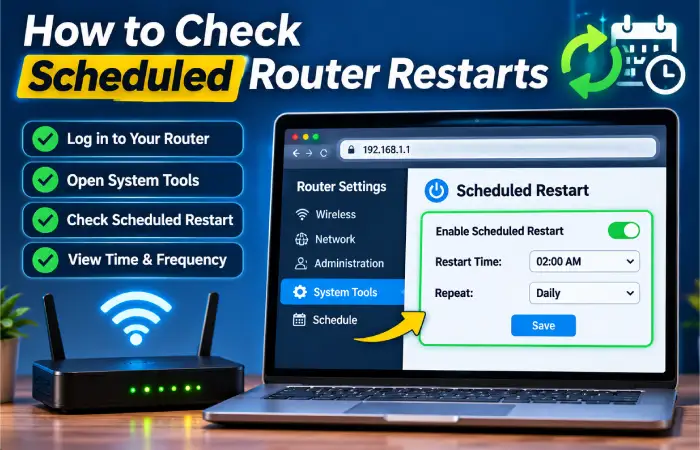
- Connect your laptop or phone to your Wi-Fi at home.
- Open a web browser on your device. Connect to your internet provider’s gateway by typing in your router’s gateway address like 192.168.1.1 or 192.168.0.1.
- Login by using your administrator ID for the router.
- Click on the Administration, System Tools, or Maintenance tab.
- Seek the Reboot Schedule or Scheduled Restart selection.
- See if auto restart is turned on.
You can change or disable the schedule if you see an extra restart schedule.
Note that the options differ according to the manufacturer of your router. If your internet provider handles your router, contact their support team to have a look at the advanced settings.
2. Identify Nighttime Network Congestion
Did you realize your internet starts slowing down after 8 PM even before the internet disconnects?
One potential explanation is that there may be congestion on the network during the night.
In the evening, most people are off work and arrive home, beginning to stream movies, play online games, download files and use video-calling applications. Internet consumption in residential areas increases.
For instance, if multiple residents in your apartment complex are watching high quality videos simultaneously through your shared network infrastructure.
This can cause issues with downloading, buffering, high ping times, and inconsistent internet speeds.
How to identify network congestion:
- Test the speed in the afternoon.
- Perform this test again later at 8 -11 pm.
- Check download speed, upload speed, and latency.
- Try to see if your devices that are also connected to your router have the same problem.
- Use an Ethernet cable to test your laptop.
If the wired connection also becomes unstable at night, the issue may be related to your ISP rather than your wireless signal.
Ways to reduce network congestion:
- Pause all but essential downloads and large updates.
- Do not engage in multiple intensive bandwidth activities concurrently.
- Use Ethernet to connect your desktop PC to the connected TV whenever possible.
- Select the 5 GHz Wi-Fi band if your devices are near enough to the router.
- Hold on to your plans if you frequently run out of internet data. Consider a higher-bandwidth plan.
Remember that slow internet and complete disconnections are not always the same problem. If your connection drops entirely, investigate the router and ISP as well.
3. Review ISP Maintenance Notices
Scheduled maintenance from your internet service provider could be another reason your Wi-Fi disconnects at night.
Internet providers do some maintenance late at night/early in the morning because this is when there is less network traffic.
This could include replacing any network device, building new servers, updating software, fixing fiber connections, or enhancing a local environment.
During maintenance, you might experience:
- Temporary internet outages.
- Repeated connection drops.
- Slow browsing speeds.
- Router internet indicators changing color.
- Short periods without internet access.
How to check ISP maintenance notices:
- Visit your internet provider’s official website.
- Look for service status, outage information, or maintenance announcements.
- Check whether your registered area is affected.
- Review SMS messages and emails from your provider.
- Contact customer support if you cannot find any information.
In India, broadband customers using JioFiber, Airtel Xstream Fiber, and other providers can check their official apps or customer support channels.
If your provider confirms scheduled maintenance, wait until the announced period ends before making changes to your router.
4. Inspect Router Power Saving Settings
Some routers feature power management capabilities that can reduce energy usage.
Some features, such as decreasing wireless transmission power, scheduling Wi-Fi availability, or enabling some other wireless capabilities, are controlled by these settings.
They may also cause connectivity issues at night if set up improperly.
But not all routers have this auto nighttime power-saving feature, so that could just be your router.
How to inspect router power settings:
- Open your router’s administration page.
- Sign in using your administrator account.
- Navigate to Wireless Settings or Advanced Settings.
- Look for options such as Eco Mode, Power Management, Wi-Fi Schedule, or Wireless Timer.
- Check whether any settings automatically reduce or disable wireless activity at night.
If you discover that Wi-Fi is scheduled to turn off during certain hours, adjust the schedule to match your requirements.
I would also recommend checking a few basic things:
- Keep your router in an open, ventilated location.
- Avoid placing it inside a closed cabinet.
- Use the original power adapter.
- Check whether the router becomes unusually hot.
- Install manufacturer-approved firmware updates.
These small adjustments can help prevent avoidable connection problems.
5. Monitor Overnight Connection Logs
Why Does My Wi-Fi Keep Disconnecting? Your Wi-Fi might be disconnecting constantly, even after implementing the above solutions, so checking your router logs will show you what errors you get.
Some routers log events that can help to reveal intrusions. Depending on your router, logs may contain records of internet outages, restarts, wireless client disconnects, or failures to authenticate.
For instance, if your Wi-Fi is disconnecting during a specific time like 1:30 AM each night, look through the router logs for anything that occurred at that time.
How to monitor overnight connection logs:
- Open your router’s administration page.
- Sign in using your administrator credentials.
- Find the System Log, Event Log, or Administration section.
- Make sure logging is enabled.
- Review entries around the time your internet disconnects.
- Save the information if you need help from your ISP.
Look for messages such as:
- WAN disconnected.
- DHCP lease expired.
- Wireless client disconnected.
- PPP authentication failed.
- System reboot.
- Internet connection restored.
These messages can provide useful clues about the actual problem.
For instance, multiple disconnections from the internet may also be indicative of a broadband fault, while recurring entries for rebooting the system might also point to a router problem (power or other).
If your router isn’t keeping logs for any lengthy period of time, be sure to note the precise time every time your connection goes down. Even a few days worth of observations can reveal a pattern.
Additional Tips to Prevent Wi-Fi Disconnections at Night
Apart from the five main solutions, a few everyday habits can help improve your wireless connection.
- Restart your router when necessary: A simple restart can sometimes resolve temporary network problems.
- Update router firmware: Install available updates from the manufacturer or ISP.
- Check connected devices: Look for unnecessary background downloads and unknown devices.
- Change Wi-Fi channels: A less crowded wireless channel may reduce interference.
- Inspect cables: Loose power, Ethernet, or fiber connections can cause interruptions.
- Check router placement: Keep your router away from thick walls and other sources of interference.
If none of these steps helps, ask your ISP to investigate recurring overnight connection drops.
Frequently Asked Questions
1. Why does my Wi-Fi disconnect at the same time every night?
Did you have a router scheduled restart or a wi-fi timer or ISP scheduled maintenance or auto network setting? Check your routers scheduling options. Also, if this was a disconnected logon this may be caught in your connection logs.
2. Can too many devices cause Wi-Fi disconnections at night?
Yes. If you have several devices active on your old router, this can be too much for your device or fill in all your available space. As a result, the speeds won’t be great, there will be lag, and you will lose connectivity.
3. Does router overheating cause nighttime internet problems?
How do I cool down my router? Yep. An overheated router can start to run wonky and even reboot itself. Make sure your router is well-ventilated and isn’t covered.
4. Should I turn off my Wi-Fi router at night?
Every night, usually not. You shouldn’t have to turn it off every night in general, and this is because. You should be able to leave it plugged in.
5. How can I tell whether my ISP is causing nighttime disconnections?
Do you get deactivation on a handful of gadgets concurrently? (Ethernet: Verify)
Final Thoughts
Still curious, why does my Wi-Fi disconnect at night? So, review your router’s reboots (optional) setting, look for a large number of concurrent devices causing congestion, and if the internet provider is scheduled to do maintenance work.
And think about your power saving settings and any overnight logs of your connection – these might help us get a better understanding of what was going on before you lost internet.
I’d keep an eye on the disconnect times over a couple of evenings and confirm them against your router logs. This quick calculation can prevent you spending hours on resets or buying a new router when in fact your problem is elsewhere.
Your bandwidth shouldn’t drop off during the night just because it’s dark outside. Read this to find out why Wi-Fi keeps disconnecting at night! To find the answer to this question, and finally cut Wi-Fi disconnecting at night for good, keep reading!