
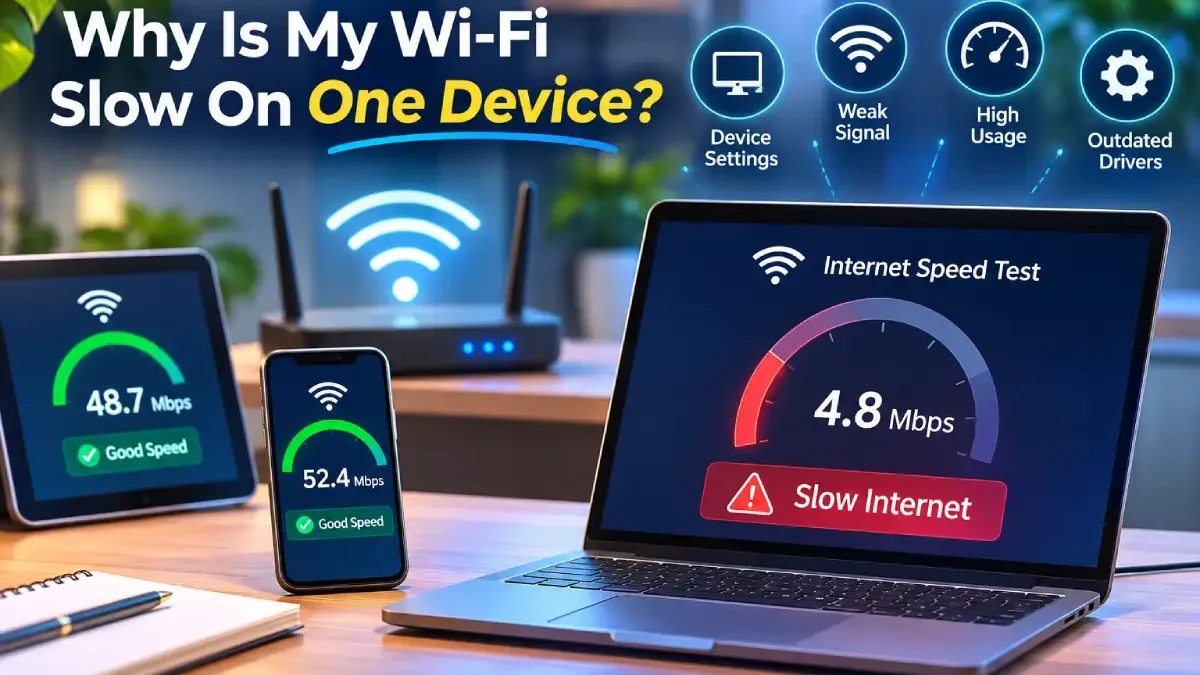
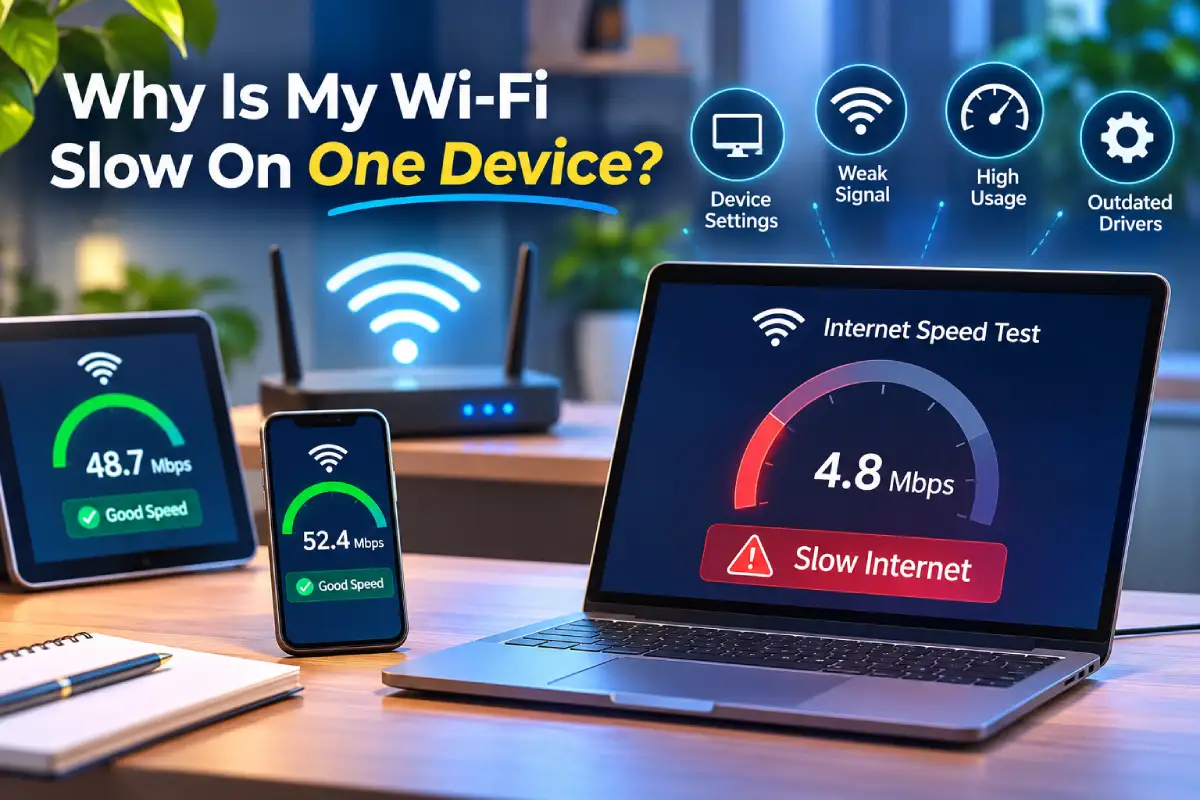
Have you ever noticed that your Wi-Fi works perfectly on your phone, smart TV, or another laptop, but one particular device takes forever to load websites? Videos keep buffering, downloads move slowly, and even simple browsing becomes frustrating.
If you’re wondering, why is my Wi-Fi slow on one device, the problem may not be your internet connection or router. In many cases, the issue comes from the device itself. Outdated network drivers, background applications, incorrect Wi-Fi settings, weak signal reception, or hardware limitations can all affect internet speed.
The good news is that you don’t always need a new router or a faster internet plan. A few simple checks can help you identify what’s slowing down your device and get your connection working properly again.
Table of Contents
Why Is My Wi-Fi Slow on One Device?
When several devices use the same Wi-Fi network, they don’t always receive the same internet performance. One device might have a newer wireless adapter, better signal reception, or more efficient network settings than another.
Here are some common reasons:
- Outdated or corrupted Wi-Fi adapter drivers.
- Connection to a slower wireless frequency band.
- Too many applications using internet bandwidth in the background.
- Weak Wi-Fi reception due to distance or obstacles.
- Interference from nearby wireless devices.
- Older hardware that doesn’t support faster Wi-Fi standards.
- VPN, antivirus, or proxy software affecting connection speed.
- Browser extensions or software consuming system resources.
Before changing anything, restart the affected device and run a speed test. If the problem continues, try the following solutions.
1. Compare Device Speed Tests
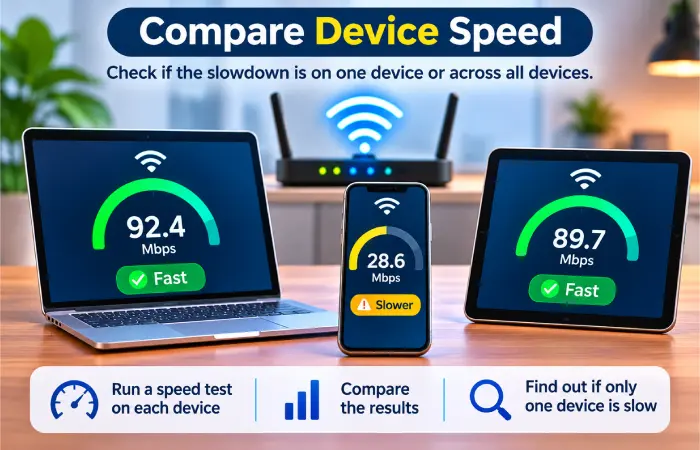
The first step is to confirm whether the problem affects only one device. Running speed tests on multiple devices connected to the same Wi-Fi network can help you understand what’s happening.
For example, test your internet speed on your phone and then on the laptop experiencing slow Wi-Fi.
Use the same speed-testing service, such as Ookla Speedtest or Fast.com. If possible, perform the tests in the same location and close applications that may be using the internet.
Compare these three measurements:
- Download speed: How quickly your device receives data.
- Upload speed: How quickly your device sends data.
- Ping: How long it takes for data to travel between your device and the test server.
Here’s an example of what your results might look like:
| Device | Download Speed | Upload Speed |
|---|---|---|
| Smartphone | 100 Mbps | 25 Mbps |
| Laptop | 15 Mbps | 8 Mbps |
| Smart TV | 95 Mbps | 22 Mbps |
In this example, the laptop is receiving much slower speeds than the other devices.
If your laptop consistently performs poorly while other devices are fast, investigate its wireless adapter, software, and network configuration.
Tip: Run each test more than once. Internet speeds naturally fluctuate, so one result isn’t enough to identify the problem.
2. Check Wireless Band and Link Speed
Your router may broadcast Wi-Fi on different frequency bands, commonly 2.4 GHz and 5 GHz. Some newer routers also support 6 GHz.
The frequency band your device uses can make a noticeable difference.
- 2.4 GHz: Offers better coverage through walls but can experience more interference and congestion.
- 5 GHz: Usually provides faster speeds over shorter distances, although its signal may weaken more quickly through obstacles.
- 6 GHz: Can offer additional capacity and faster connections with compatible routers and devices, but generally requires a closer range.
Your slow device may be connected to 2.4 GHz while your other devices use 5 GHz.
Check your laptop’s Wi-Fi connection details to see which band it is using. On Windows 11, open Settings > Network & internet > Wi-Fi, select your connected network, and review the available connection properties.
You can also check the wireless link speed.
Open Command Prompt and enter:
netsh wlan show interfacesLook for details such as radio type, channel, receive rate, and transmit rate.
If the link speed is unusually low, your device may be using a slower connection because of signal strength, hardware limitations, or router compatibility.
Try connecting to the 5 GHz network if your device supports it and the signal is strong enough.
3. Find Background Bandwidth Usage
Sometimes Wi-Fi isn’t actually slow. Instead, another application on your device is using most of the available internet bandwidth.
This commonly happens when Windows downloads updates, cloud storage synchronizes files, or applications download large files in the background.
For example, you may be trying to watch a video while a game launcher downloads a large update. The result can be buffering, slow browsing, and interrupted downloads.
How to check bandwidth usage on Windows:
- Press
Ctrl + Shift + Escto open Task Manager. - Select the Processes tab.
- Look for the Network column.
- Check which applications are using the most network resources.
- Close unnecessary applications that are consuming bandwidth.
You can also open Settings > Network & internet > Advanced network settings > Data usage to review recent data consumption.
Common applications worth checking include:
- Windows Update.
- OneDrive and other cloud storage services.
- Steam and other gaming platforms.
- Video streaming applications.
- Torrent clients.
- Background backup software.
Don’t stop unfamiliar system processes simply because they use network resources. Identify the application first and close only programs you recognize and don’t currently need.
4. Update Network Adapter Drivers
An outdated or corrupted network adapter driver can affect Wi-Fi performance even when your router and internet connection are working properly.
Drivers allow your operating system to communicate with the wireless hardware. If they aren’t working correctly, you may experience slow speeds, random disconnections, or difficulty connecting to certain networks.
How to update your Wi-Fi driver:
- Right-click the Windows Start button.
- Select Device Manager.
- Expand Network adapters.
- Find your wireless adapter.
- Right-click it and select Update driver.
- Choose Search automatically for drivers.
Follow the instructions displayed on your screen.
For better results, visit your laptop manufacturer’s official support website and search for the latest wireless driver using your exact laptop model.
If the issue started after a recent driver update, check the Driver tab under your wireless adapter’s Properties. You may have the option to roll back to the previous driver version.
Avoid installing drivers from unknown websites. Incorrect drivers can create additional network problems.
5. Test Device Location and Interference
Your device’s physical location can also affect Wi-Fi performance.
Even if your phone receives a strong signal, your laptop may have a weaker wireless antenna or may be positioned somewhere with more interference.
Walls, furniture, metal objects, and electronic equipment can affect wireless signals.
Try these simple tests:
- Move your laptop closer to the router.
- Avoid placing it behind large metal objects.
- Keep it away from crowded areas with many wireless devices.
- Test the connection in another room.
- Compare performance on 2.4 GHz and 5 GHz networks.
- Place the router in an open, central location if possible.
Bluetooth devices, neighboring Wi-Fi networks, and other electronics can also contribute to interference, particularly on the crowded 2.4 GHz band.
If your laptop becomes noticeably faster when you move closer to the router, the problem may be related to signal strength rather than your internet plan.
Additional Ways to Improve Wi-Fi Speed on One Device
If the five solutions above don’t improve performance, try a few additional checks.
Disable an Unnecessary VPN
A VPN routes your internet traffic through another server. Depending on the server location, encryption, and network conditions, this can reduce browsing and download speeds.
Temporarily disconnect from your VPN and run another speed test. If performance improves, try a closer VPN server or check your VPN settings.
Check for Malware and Unwanted Software
Malware or unwanted applications may consume system resources and network bandwidth. Run a scan using Windows Security or a trusted security application.
Restart Your Network Adapter
On Windows, press Windows + R, enter ncpa.cpl, and press Enter. Right-click your Wi-Fi connection, select Disable, wait a few seconds, and then select Enable.
This refreshes the wireless connection without resetting your entire network configuration.
Check Your Device’s Hardware Limitations
Older laptops and phones may not support the same Wi-Fi standards or maximum speeds as newer devices. If your device has an older wireless adapter, it may never reach the same speeds as a modern smartphone.
Frequently Asked Questions
Why is my Wi-Fi fast on my phone but slow on my laptop?
Your laptop may have an outdated wireless driver, weaker Wi-Fi antenna, slower network adapter, or background applications consuming bandwidth. Compare speed tests and check the laptop’s wireless connection details.
Can one device slow down the entire Wi-Fi network?
Yes. A device downloading large files, streaming high-resolution videos, or running cloud backups can consume a significant amount of available bandwidth. However, this doesn’t necessarily mean that every device will experience the same slowdown.
Does 5 GHz Wi-Fi improve internet speed?
It can. The 5 GHz band generally offers faster wireless connections than 2.4 GHz, especially in areas with heavy interference. However, performance depends on distance, obstacles, router capabilities, and device compatibility.
Should I replace my router if only one device has slow Wi-Fi?
Not immediately. If other devices consistently receive good speeds, check the affected device’s drivers, network settings, wireless band, and hardware before replacing your router.
Final Thoughts
If you’re asking why is my Wi-Fi slow on one device, remember that the problem isn’t always your internet service provider or router. A device-specific issue can affect connection speed even when the rest of your home network works perfectly.
Start by comparing speed tests, checking the wireless band, and looking for background applications using your bandwidth. Then update your network adapter drivers and test your device in different locations.
These simple troubleshooting steps can help you identify the real cause and improve Wi-Fi performance without spending money on unnecessary equipment.