
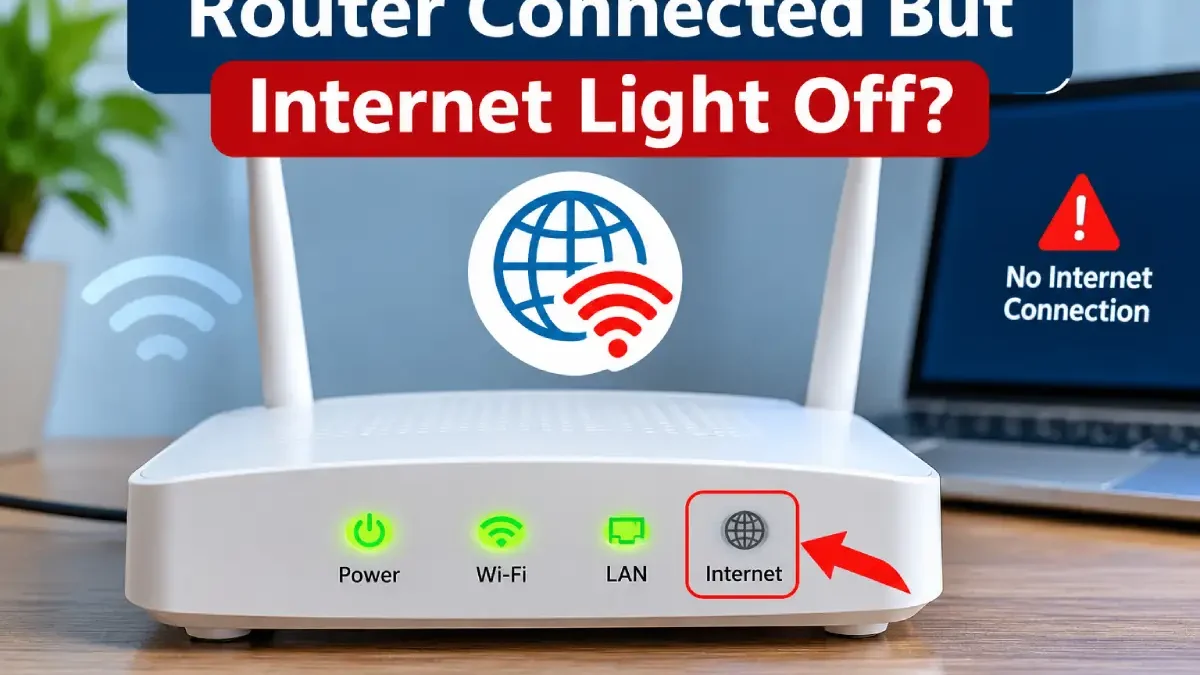
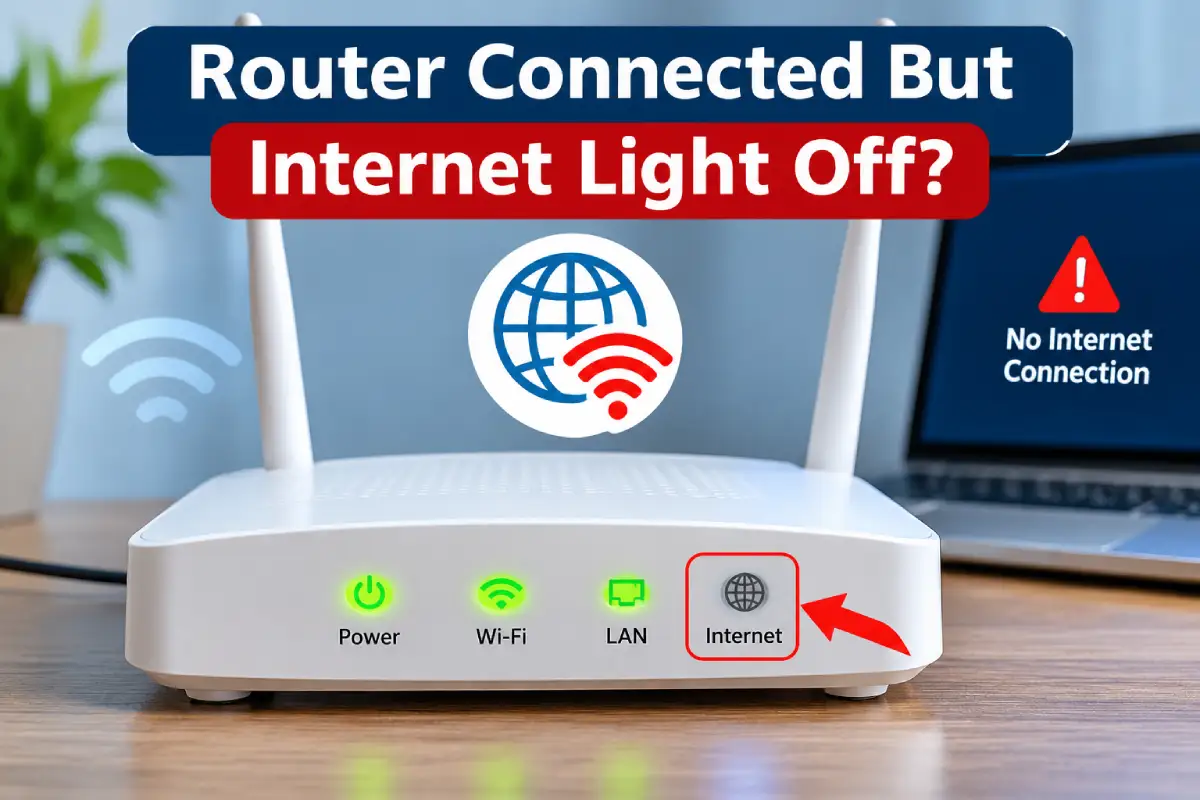
Have you ever looked at your router and noticed that the Wi-Fi light is working, but the internet light is completely off? Your phone or laptop may connect to the wireless network, yet websites refuse to load. It can be confusing because everything appears normal until you try to access the internet.
If your router is connected but the internet light is off, the problem may be related to your modem, WAN cable, ISP connection, or router configuration. In some cases, your router is broadcasting Wi-Fi correctly but isn’t receiving an internet connection from your service provider.
The good news is that you can check several things yourself before contacting technical support. Let’s look at the common causes and practical solutions.
Table of Contents
Why Is the Router Connected But the Internet Light Off?
Your router and internet connection perform different functions. The router creates a local network that allows your devices to communicate, while the modem or ONT connects your home network to your internet service provider.
This means your laptop can show a connected Wi-Fi status even when the router has no internet access.
Some common reasons include:
- Loose or damaged WAN Ethernet cable.
- Modem not synchronized with the ISP.
- Temporary internet service outage.
- Incorrect PPPoE username or password.
- Router WAN configuration problems.
- ISP authentication failure.
- Damaged modem, router, or power adapter.
- Fiber connection problems.
Before changing any settings, check the router’s indicator lights. They can provide useful clues about where the connection is failing.
1. Interpret WAN and Internet LEDs
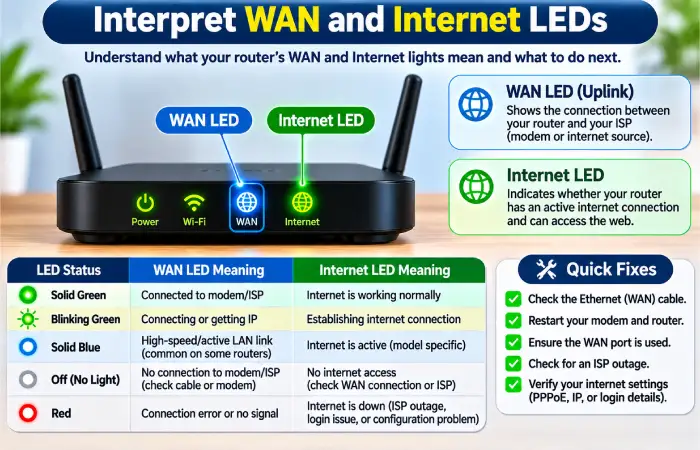
The first thing to do is understand what your router’s indicator lights are telling you.
Different router manufacturers use different light patterns and colors. However, the Power, Wi-Fi, WAN, and Internet indicators generally provide information about the device’s connection status.
Here’s what common indicators usually mean:
| Router Light | What It Indicates |
|---|---|
| Power | Router is receiving electricity |
| Wi-Fi/WLAN | Wireless network is enabled |
| WAN | Connection to the modem or incoming internet source |
| Internet | Router’s internet connection status |
| LAN | Wired connection to another device |
If the Wi-Fi light is on but the internet light is off, your router may still be broadcasting a wireless network without having an active internet connection.
Pay attention to the WAN light as well.
- WAN light off: The router may not detect a physical connection to the modem.
- WAN light blinking: Data may be transferring, depending on the router model.
- WAN light on but internet light off: The physical connection may exist, but the router may not have established an internet session.
- Red internet light: Some routers use this to indicate a failed or unavailable internet connection.
Check your router’s user manual because LED meanings aren’t identical across brands.
2. Check Modem Synchronization
If you’re using a separate modem and router, the modem must establish a connection with your ISP before your router can access the internet.
Sometimes the router works perfectly, but the modem hasn’t synchronized with the service provider.
This can happen after a power outage, equipment restart, maintenance work, or temporary service interruption.
How to check modem synchronization:
- Look at the modem’s Power indicator.
- Check the DSL, PON, or Online light, depending on your connection type.
- Wait a few minutes to allow the modem to establish a connection.
- Check whether the indicator becomes stable.
- If the modem remains disconnected, restart it.
For DSL connections, the DSL light generally indicates whether the modem has established synchronization with the telephone line.
For fiber connections, check the PON and LOS indicators. A stable PON light generally indicates successful optical registration, while a red or blinking LOS light may indicate a loss of optical signal.
If your modem is not synchronized, restarting the router repeatedly is unlikely to solve the problem. The issue may be with the incoming line or your ISP’s network.
3. Inspect Ethernet WAN Cable
A loose or damaged Ethernet cable is another common reason why the router’s internet light stays off.
The WAN cable connects your modem or ONT to the router’s WAN or Internet port. If this connection is interrupted, your router may continue broadcasting Wi-Fi but won’t receive internet access.
Follow these steps:
- Locate the Ethernet cable connecting your modem and router.
- Check that one end is firmly connected to the modem’s LAN port.
- Make sure the other end is connected to the router’s WAN port.
- Remove and reconnect both ends carefully.
- Look for damaged connectors, cuts, or sharp bends.
- If possible, test with another working Ethernet cable.
You can also check whether the WAN indicator changes when you reconnect the cable.
If the light remains off, try a different compatible LAN port on the modem if one is available and permitted by your ISP.
For fiber broadband connections, don’t confuse the Ethernet cable with the fiber-optic cable. Avoid bending or disconnecting the fiber line unnecessarily because it can be easily damaged.
Tip: A faulty Ethernet cable can cause connection problems even when it looks perfectly normal from the outside. Testing with another cable is a simple way to rule it out.
4. Verify ISP Authentication Settings
Sometimes all the cables are connected properly, and your modem is synchronized, but the router still cannot access the internet.
This may happen because of an authentication problem.
Some internet providers require routers to use PPPoE (Point-to-Point Protocol over Ethernet). This connection method uses a username and password supplied by the ISP.
If these details are incorrect, missing, or changed, the router may fail to establish an internet session.
How to check your router’s WAN settings:
- Connect your laptop or phone to the router.
- Open a browser.
- Enter your router’s administration address, such as
192.168.1.1or the address printed on the device. - Log in using your router administrator credentials.
- Open the Internet, WAN, or Network settings section.
- Check the connection type and authentication status.
Look for messages such as:
- Authentication failed.
- PPPoE disconnected.
- WAN disconnected.
- No IP address assigned.
- Internet connection unavailable.
If your ISP uses PPPoE, confirm that the username and password are correct. Other providers may use DHCP, static IP addresses, or additional connection settings.
Don’t randomly change WAN configuration values. Incorrect settings can disconnect an otherwise working connection.
If you’re unsure about your authentication details, contact your ISP and ask them to verify the required WAN configuration.
5. Contact ISP With Diagnostic Results
If you’ve checked the router lights, modem synchronization, Ethernet cable, and WAN settings but the internet light remains off, it’s time to contact your internet service provider.
The problem may be outside your home. Your ISP could be experiencing a network outage, line fault, authentication issue, or equipment problem.
Before contacting support, collect a few details:
- Router model and brand.
- Modem or ONT model.
- Status of the Power, WAN, Internet, DSL, PON, and LOS lights.
- Whether the problem started after a power outage.
- Whether you’ve restarted the equipment.
- Whether you’ve tested another Ethernet cable.
- Any error messages displayed in the router administration page.
When speaking with customer support, explain exactly what you’ve checked.
For example:
“My router’s Wi-Fi light is working, but the internet light is off. I’ve restarted the modem and router, checked the WAN cable, and confirmed that the modem has power. Could you check my line status and authentication?”
Providing these details can help technical support identify the problem faster.
If the ISP confirms a line fault or area-wide outage, wait for the service to be restored rather than repeatedly resetting your equipment.
Additional Things to Try Before Replacing Your Router
If your internet connection is still unavailable, consider these additional checks:
Restart Your Networking Equipment
Switch off the modem and router. Wait around 30 seconds, then power on the modem first. Allow it to synchronize before switching on the router.
Check for a Firmware Update
An outdated router firmware version can sometimes cause connection or stability problems. Check the manufacturer’s official website or router administration page for updates.
Only install firmware intended for your exact router model and hardware revision.
Avoid Factory Resetting Too Early
A factory reset removes saved network settings, including Wi-Fi passwords and ISP connection details. It may make the situation worse if you don’t know how to restore the original configuration.
Try simpler troubleshooting steps first. Contact your ISP before resetting an ISP-provided router.
Frequently Asked Questions
Why is my Wi-Fi working but the internet light is off?
Your router may be broadcasting Wi-Fi normally but not receiving an internet connection from the modem or ISP. Check the WAN cable, modem status, and internet configuration.
Should the WAN light be on all the time?
In most routers, the WAN indicator should show an active physical connection when the modem or incoming network is connected. However, the exact behavior depends on the router model.
Can a faulty Ethernet cable turn off the internet light?
Yes. A damaged or disconnected Ethernet cable between your modem and router can prevent the router from detecting its WAN connection.
Does a red internet light mean my router is damaged?
Not necessarily. A red internet light often indicates that the router cannot establish an internet connection. The cause may be an ISP outage, authentication failure, or cable problem rather than hardware damage.
Should I contact my ISP if the modem has a red LOS light?
Yes. A red LOS indicator on many fiber ONTs suggests that the optical signal is missing. Contact your ISP and request a line or fiber connection check. Avoid handling or bending the fiber cable.
Final Thoughts
If your router is connected but the internet light is off, the problem usually comes down to the connection between your router, modem, and internet service provider.
Start by checking the WAN and internet LEDs, then confirm that your modem has synchronized correctly. Inspect the Ethernet cable and verify your ISP authentication settings before making major configuration changes.
If everything appears normal but the internet light remains off, contact your ISP with the diagnostic results. This will help determine whether the issue is caused by your home equipment or a problem with the provider’s network.