
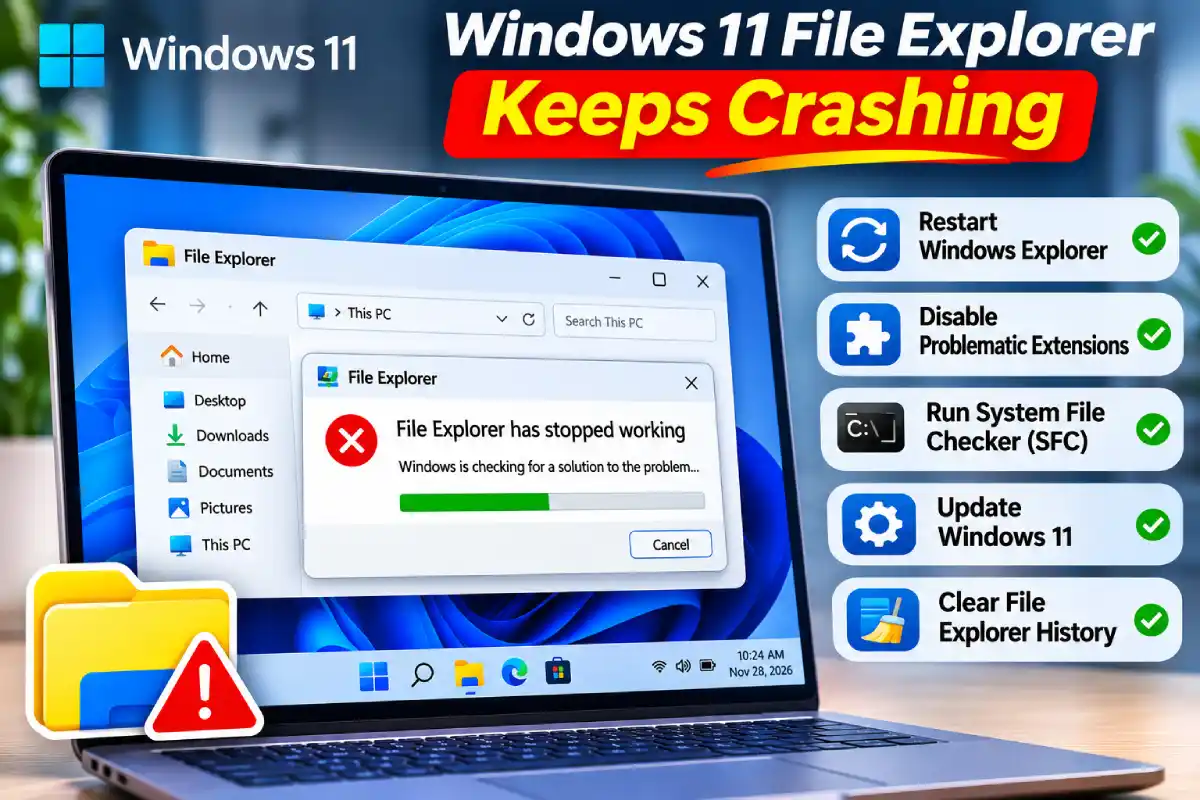
File Explorer is arguably the most used Windows 11 feature. From opening documents and navigating through folders, to copying files and using external storage devices, you interact with it throughout your day. As such, when File Explorer suddenly shuts down, freezes or reboots, even the smallest operation becomes a nuisance.
You might experience File Explorer crashing as you open a specific folder, it might freeze when loading folder contents or it might shut down when you right-click a certain file. As the desktop and taskbar run on the Windows Explorer process, you might find they refresh too.
There are a few possible causes for why your Windows 11 File Explorer is crashing. It might be because of a corrupted cache, an incompatible third-party program, damaged system files or a problem with a certain folder. You don’t need to reinstall Windows as there are several ways you can fix this.
Let’s take a look at what might be the cause and the potential solutions to your problem.
Table of Contents
Why Does File Explorer Keep Crashing in Windows 11?
File Explorer can become unstable for several reasons. Identifying when the crash happens can help narrow down the problem.
Common causes include:
- Corrupted File Explorer history: Stored browsing information or temporary data may cause unexpected behavior.
- Problematic shell extensions: Third-party applications can add options to the right-click menu and interfere with Explorer.
- Damaged system files: Missing or corrupted Windows components may affect File Explorer.
- Faulty folders or files: A folder containing damaged thumbnails, unusual media files, or too many items may cause loading problems.
- Outdated drivers: Display or storage driver problems can sometimes affect Explorer stability.
- Recent software changes: A newly installed application or Windows update may introduce compatibility issues.
Before trying advanced repairs, restart your computer and check whether File Explorer works normally afterward.
1. Identify Explorer Crash Triggers
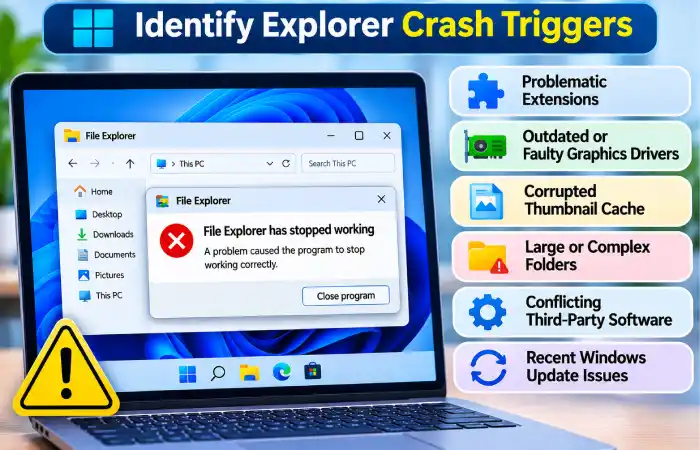
Identify when exactly File Explorer crashes. Does the crash occur when accessing the Downloads folder, opening pictures, plugging in a USB device or right-clicking a file in File Explorer? Such info can aid troubleshooting.
Try to open other directories and execute some basic tasks.
Follow these checks:
- To launch File Explorer, simply press Windows + E on your keyboard.
- Open various folders such as Documents, Pictures, Downloads, and so on.
- Experiment with toggling between Detail, List, and Icon views.
- Right-click on a file or folder and see if the context menu causes a crash.
- Only plug in a external drive if you have reason to believe the issue occurs when accessing external devices.
If File Explorer crashes only when opening one particular folder, the problem could be due to something in the folder itself, generating thumbnails or the folder’s settings.
You can check whether a recently installed program could be at fault. If the issue started after installing a new file, archive, cloud storage or media related program, try removing it for a while to see if the issue disappears.
It may be tempting to delete the contents of a folder just because opening it in Explorer causes a crash. Always back up files before attempting any form of recovery on them.
2. Clear File Explorer History
Windows stores information about the most recently accessed files, folders, and directory locations in File Explorer. It’s possible that one of the stored entries has become corrupted, causing issues when accessing these entries.
You can clear your File Explorer history as a simple fix.
How to clear File Explorer history:
- Press Windows + E.
- Access the three-dot menu on the upper part of the window.
- Select Options.
- Open the General tab, then navigate to the Privacy area.
- Press Clear next to Clear File Explorer history.
- Click Apply and then OK.
<caption>Clear File Explorer history from Folder Options to remove stored browsing information.</caption>
You may want to change the default setting of File Explorer from Home to This PC to prevent it from possibly crashing when loading recent files or folders.
Once the history is cleared, close File Explorer and open it back up.
Note that this will only clear your recent history and will not delete any documents, downloads or any of your other files.
3. Disable Problematic Shell Extensions
An application can add additional functionality to File Explorer, these are called shell extensions. For instance a compression utility might add extensions to the right click menu and a cloud storage application might add some synchronisation options.
They are handy, although an outdated or incompatible extension might cause File Explorer to hang or crash.
If Explorer drops whenever you right click on a file, one of the shell extensions will be a suspect.
How to identify a problematic extension:
- Consider the apps that may have added an extension to File Explorer recently.
- Temporarily uninstall or disable the suspect app from Settings > Apps > Installed apps.
- Restart Windows.
- Open File Explorer again and perform the action that caused the crash.
A tool like ShellExView from Nirsoft is very helpful to show all the installed shell extensions. Be cautious when using it – only disable non-Microsoft extensions, ideally just one at a time and then check if Explorer is stable.
Don’t disable extensions haphazardly, especially ones that are obviously related to Windows or your security software. If the extension you disabled stops causing problems, visit the vendor’s site and look for an updated version of the software.
4. Check System File Integrity
If Explorer still crashes after clearing its history and looking at third party extensions, corrupted Windows files may be the cause.
There are two built-in command-line utilities that you can run in Windows to scan and repair system files – DISM and the System File Checker (SFC).
Step 1: Run DISM
- Open Start and search for Command Prompt.
- Select Run as administrator.
- Enter the following command:
DISM /Online /Cleanup-Image /RestoreHealth
- Press Enter and wait for the process to finish.
DISM checks the Windows component store and attempts to repair problems. It may take several minutes and can require an internet connection.
Step 2: Run System File Checker
After DISM completes, enter:
sfc /scannow
Hit enter to start the scan and let it finish at 100%.
SFC scans through Windows files that are protected, and replaces any corrupted ones with healthy copies.
After the scans have completed, reboot your computer, then try out the File Explorer again.
If either one of them say they couldn’t fix a few files, make sure you take note of the report, as it’s useful for further diagnosis.
5. Review Crash Logs
In case File Explorer continues to crash and none of the previous suggestions are of help, crash logs from Windows can prove beneficial.
Windows logs errors in its Event Viewer. This tool is helpful to determine if Explorer is crashing due to an application-specific component or for some other reason.
How to check File Explorer crash reports:
- Press Windows + R.
- Type eventvwr.msc and press Enter.
- Expand Windows Logs.
- Select Application.
- Look for recent entries marked Error around the time File Explorer crashed.
- Open a relevant entry and review its details.
Pay attention to information such as:
- Faulting application name: This may identify File Explorer as the application involved.
- Faulting module name: This can point to a Windows component or third-party module associated with the crash.
- Exception code: This provides technical information about the type of error.
- Event time: This helps match the log entry to the moment the crash occurred.
You may also see a Windows Error Reporting entry. Compare its timestamp with the application error to find related events.
Do not assume that a faulting module is automatically the cause. Crash logs provide clues, but additional testing may be needed to confirm the source.
If you are contacting technical support, save the relevant error details or take a screenshot.
Additional Tips to Keep File Explorer Stable
Once File Explorer starts working normally, a few simple checks can help prevent repeated crashes.
- Install Windows updates: Keep Windows 11 up to date with important reliability and security fixes.
- Update storage and display drivers: Use Windows Update or your computer manufacturer’s official support page.
- Check available storage: A nearly full system drive can contribute to wider performance problems.
- Scan downloaded files: Use Windows Security to check suspicious files and folders.
- Remove unnecessary customization tools: Avoid running several applications that modify File Explorer or the Windows interface.
- Restart your computer: A restart can clear temporary issues affecting Windows processes.
If File Explorer crashes only when opening a particular external drive, check the drive’s connection and condition before making changes to its files.
Frequently Asked Questions
Why does File Explorer keep restarting in Windows 11?
File Explorer can be forced to restart due to corrupt history, faulty shell extensions, system files, or even a problematic folder. Checking the logs of the crashes can help determine the cause.
Is there a way to restart File Explorer without rebooting my computer?
You can bring up Task Manager (Ctrl+Shift+Esc) and under Processes find Windows Explorer, right click it, then click Restart.
Whether clearing the File Explorer history will delete any of my files?
No. Clearing the File Explorer history only deletes your recent files and folder lists. Your actual files and folders won’t be touched.
Why does File Explorer crash when I right-click?
That could be caused by a third party shell extension. Some third party apps integrate with the right click context menu, and they may cause explorer to crash when you access their menu item.
Could system file corruption cause File Explorer to crash?
Absolutely, corrupted Windows components could trigger issues for Explorer among others in Windows. Using DISM and then running sfc /scannow could repair these damaged components.
Final Thoughts
File Explorer repeatedly crashing and the associated frustration and daily interruptions in Windows 11. Generally it’s better to identify when File Explorer crashes rather than take immediate radical action. Observe whether the crash takes place when accessing a particular folder, try clearing your File Explorer’s history. Check for problematic third-party shell extensions. Run the system file checker. Check the event viewer. If all these fail then try these steps in order and monitor the File Explorer after each one.