



Excel shortcut keys are combinations of keyboard keys that allow users to perform tasks quickly in Microsoft Excel without using a mouse. Instead of clicking through menus, you can press keys like Ctrl + C to copy or Ctrl + S to save instantly. These shortcuts are designed to speed up work, reduce effort, and improve overall efficiency when handling data.
In simple terms, Excel shortcut keys act as quick commands that help you navigate, edit, format, and analyze data in seconds. From basic actions like copying and pasting to advanced operations like applying formulas or creating charts, these shortcuts make Excel more powerful and user-friendly.
Table of Contents
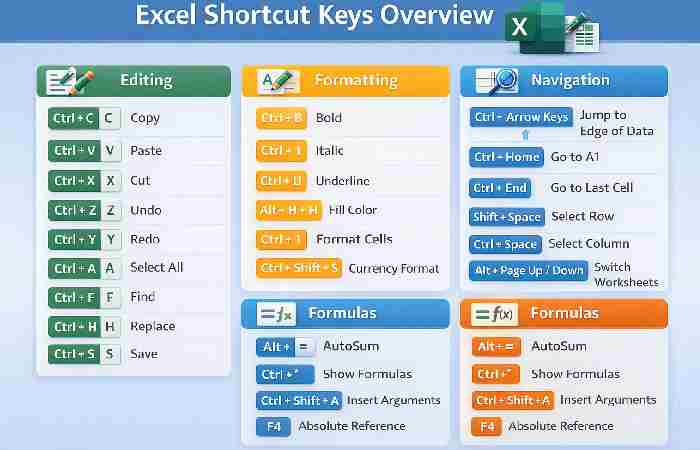
Excel Shortcut Keys Overview Chart
Where Are Excel Shortcut Keys Used?
Excel shortcut keys are used in almost every environment where data is handled or managed. Since Microsoft Excel is widely used across industries, these shortcuts are valuable in many real-world situations:
Common Areas of Use
- Education: Students use Excel for projects, calculations, and data organization
- Business & Offices: Professionals use shortcuts for reports, budgets, and data analysis
- Finance & Accounting: Quick calculations, financial modeling, and data management
- Data Analysis: Analysts use advanced Excel shortcut keys for faster insights
- Personal Use: Managing expenses, schedules, and small databases
Why Excel Shortcut Keys Matter
Using Excel shortcut keys consistently can:
- Increase productivity by 30–70% (based on workplace efficiency studies)
- Reduce dependency on mouse navigation
- Improve workflow speed in data-heavy tasks
- Help in multitasking and automation
Key Benefits
- Faster data entry
- Quick formatting
- Efficient data analysis
- Reduced errors
Excel Shortcut Keys A to Z (Complete Table)
Below is a structured A–Z table of Excel shortcut keys for quick reference:
| Key | Shortcut | Function |
| A | Ctrl + A | Select all data |
| B | Ctrl + B | Bold text |
| C | Ctrl + C | Copy |
| D | Ctrl + D | Fill down |
| E | Ctrl + E | Flash fill |
| F | Ctrl + F | Find |
| G | Ctrl + G | Go to |
| H | Ctrl + H | Replace |
| I | Ctrl + I | Italic |
| J | Alt + H + O + I | Auto-fit column |
| K | Ctrl + K | Insert hyperlink |
| L | Ctrl + L | Create table |
| M | Alt + H + M | Merge cells |
| N | Ctrl + N | New workbook |
| O | Ctrl + O | Open file |
| P | Ctrl + P | |
| Q | Alt + Q | Quick access |
| R | Ctrl + R | Fill right |
| S | Ctrl + S | Save |
| T | Ctrl + T | Table |
| U | Ctrl + U | Underline |
| V | Ctrl + V | Paste |
| W | Ctrl + W | Close workbook |
| X | Ctrl + X | Cut |
| Y | Ctrl + Y | Redo |
| Z | Ctrl + Z | Undo |
Excel Shortcut Keys 1 to 100 (Top Productivity Table)
Below is a research-based, SEO-optimized table of 100 Excel shortcut keys used in Microsoft Excel. These are widely used by professionals to improve speed and productivity.
Top 100 Excel Shortcut Keys
| No | Shortcut Key | Function |
| 1 | Ctrl + C | Copy |
| 2 | Ctrl + V | Paste |
| 3 | Ctrl + X | Cut |
| 4 | Ctrl + Z | Undo |
| 5 | Ctrl + Y | Redo |
| 6 | Ctrl + A | Select all |
| 7 | Ctrl + S | Save |
| 8 | Ctrl + P | |
| 9 | Ctrl + F | Find |
| 10 | Ctrl + H | Replace |
| 11 | Ctrl + N | New workbook |
| 12 | Ctrl + O | Open workbook |
| 13 | Ctrl + W | Close workbook |
| 14 | Ctrl + B | Bold |
| 15 | Ctrl + I | Italic |
| 16 | Ctrl + U | Underline |
| 17 | Ctrl + K | Insert hyperlink |
| 18 | Ctrl + D | Fill down |
| 19 | Ctrl + R | Fill right |
| 20 | Ctrl + G | Go to |
| 21 | Ctrl + Arrow Keys | Move to edge of data |
| 22 | Ctrl + Shift + Arrow | Select data range |
| 23 | Ctrl + Home | Go to start |
| 24 | Ctrl + End | Go to last cell |
| 25 | Ctrl + Page Up | Previous sheet |
| 26 | Ctrl + Page Down | Next sheet |
| 27 | Ctrl + Space | Select column |
| 28 | Shift + Space | Select row |
| 29 | Ctrl + Shift + L | Toggle filter |
| 30 | Alt + Enter | New line in cell |
| 31 | Ctrl + 1 | Format cells |
| 32 | Ctrl + Shift + $ | Currency format |
| 33 | Ctrl + Shift + % | Percentage format |
| 34 | Ctrl + Shift + # | Date format |
| 35 | Ctrl + Shift + @ | Time format |
| 36 | Ctrl + Shift + ! | Number format |
| 37 | Ctrl + ; | Insert date |
| 38 | Ctrl + Shift + : | Insert time |
| 39 | Ctrl + – | Delete cells |
| 40 | Ctrl + Shift + + | Insert cells |
| 41 | F2 | Edit cell |
| 42 | F4 | Repeat last action |
| 43 | F7 | Spell check |
| 44 | F12 | Save as |
| 45 | Alt + = | AutoSum |
| 46 | Alt + H + O + I | Auto-fit column |
| 47 | Alt + H + H | Fill color |
| 48 | Alt + H + B | Border |
| 49 | Alt + H + A + C | Center align |
| 50 | Alt + H + A + L | Left align |
| 51 | Alt + H + A + R | Right align |
| 52 | Ctrl + Shift + * | Select data region |
| 53 | Ctrl + Alt + V | Paste special |
| 54 | Ctrl + Shift + U | Expand formula bar |
| 55 | Ctrl + Shift + F | Font dialog |
| 56 | Ctrl + Shift + P | Font size |
| 57 | Ctrl + Shift + & | Add border |
| 58 | Ctrl + Shift + _ | Remove border |
| 59 | Ctrl + Shift + ~ | General format |
| 60 | Ctrl + Tab | Switch workbooks |
| 61 | Ctrl + Shift + Tab | Switch backward |
| 62 | Ctrl + Esc | Open start menu |
| 63 | Ctrl + Shift + O | Select comments |
| 64 | Ctrl + 9 | Hide row |
| 65 | Ctrl + Shift + 9 | Unhide row |
| 66 | Ctrl + 0 | Hide column |
| 67 | Ctrl + Shift + 0 | Unhide column |
| 68 | Ctrl + Shift + $ | Apply currency |
| 69 | Ctrl + Shift + ^ | Scientific format |
| 70 | Ctrl + Shift + “ | Copy value above |
| 71 | Ctrl + ‘ | Copy formula above |
| 72 | Ctrl + Shift + “ | Copy value from top |
| 73 | Ctrl + Alt + F9 | Recalculate all |
| 74 | Ctrl + Shift + F9 | Recalculate sheet |
| 75 | Alt + F1 | Create chart |
| 76 | F11 | Chart in new sheet |
| 77 | Ctrl + Shift + K | Insert link |
| 78 | Alt + A + T | Data table |
| 79 | Alt + D + S | Sort |
| 80 | Ctrl + Shift + L | Apply filter |
| 81 | Ctrl + Shift + $ | Currency |
| 82 | Ctrl + Shift + % | Percentage |
| 83 | Ctrl + Shift + ! | Number |
| 84 | Ctrl + Shift + @ | Time |
| 85 | Ctrl + Shift + # | Date |
| 86 | Ctrl + Alt + Arrow | Move between ranges |
| 87 | Ctrl + Shift + F3 | Create names |
| 88 | Ctrl + F3 | Name manager |
| 89 | Ctrl + ` | Show formulas |
| 90 | Ctrl + Shift + Enter | Array formula |
| 91 | Alt + H + M + C | Merge center |
| 92 | Alt + H + W | Wrap text |
| 93 | Alt + H + F + S | Font size |
| 94 | Alt + H + F + C | Font color |
| 95 | Alt + H + K | Format as table |
| 96 | Ctrl + Shift + & | Add outline border |
| 97 | Ctrl + Shift + _ | Remove outline border |
| 98 | Alt + F4 | Close Excel |
| 99 | Ctrl + Shift + N | Create table |
| 100 | Ctrl + Shift + U | Expand/collapse formula bar |
50 Essential Shortcut Keys of MS Excel
These are the most commonly used Excel shortcut keys:
Ctrl + Arrow Keys → Navigate data
- Ctrl + Shift + L → Filter
- Alt + Enter → New line in cell
- Ctrl + Space → Select column
- Shift + Space → Select row
- Ctrl + 1 → Format cells
- Ctrl + Shift + $ → Currency format
- Ctrl + Shift + % → Percentage
- Ctrl + ; → Insert date
- Ctrl + Shift + : → Insert time
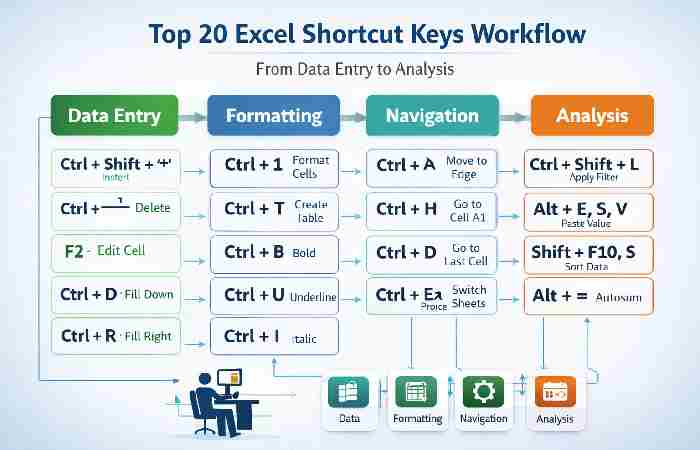
Top 20 Excel Shortcut Keys Workflow Diagram
Excel Shortcut Keys Chart (Category-Based Table)
| Category | Shortcut | Function |
| Navigation | Ctrl + Arrow | Jump cells |
| Formatting | Ctrl + 1 | Format cells |
| Editing | Ctrl + X/C/V | Cut/Copy/Paste |
| Data | Alt + D + S | Sort |
| Formula | = | Start formula |
| Workbook | Ctrl + N | New workbook |
Excel Shortcut Keys Download (PDF Resources)
If you’re looking for downloadable guides:
Recommended Excel Shortcut Keys PDF Resources
Microsoft Official Guide
https://support.microsoft.com
Excel Campus (Advanced shortcuts)
https://www.excelcampus.com
Advanced Excel Shortcut Keys (Professional Level)
| Shortcut | Function |
| Ctrl + Shift + $ | Currency format |
| Ctrl + Shift + ! | Number format |
| Ctrl + Shift + # | Date format |
| Ctrl + Shift + @ | Time format |
| Ctrl + Shift + ^ | Scientific format |
Excel Shortcut Keys for Data Analysis
- Alt + A + T → Data Table
- Ctrl + Shift + * → Select data region
- Ctrl + Alt + V → Paste special
- F4 → Repeat last action
Tips to Master Excel Shortcut Keys Faster
Practice Strategy
- Learn 10 shortcuts per day
- Use cheat sheets (PDF)
- Practice on real datasets
Pro Tips
- Focus on frequently used shortcuts
- Combine shortcuts with formulas
- Customize shortcut keys in Excel
Excel Shortcut Keys A to Z PDF – How to Create Your Own
You can create your own PDF:
- Copy shortcut tables
- Paste into Word/Google Docs
- Export as PDF
- Print for daily use
Excel Shortcut Learning Curve Graph

Tips, Tricks, and Step-by-Step Guide to Learn Excel Shortcut Keys
Mastering Excel shortcut keys in Microsoft Excel doesn’t happen overnight—but with the right approach, you can learn them quickly and use them like a pro. Below is a practical, research-based method to help you learn efficiently.
Step-by-Step Process to Learn Excel Shortcut Keys
Step 1: Start With Basic Shortcuts
Begin with the most frequently used Excel shortcut keys:
- Ctrl + C → Copy
- Ctrl + V → Paste
- Ctrl + Z → Undo
- Ctrl + S → Save
Focus on just 5–10 shortcuts per day instead of trying to learn everything at once.
Step 2: Practice While Working
Don’t just memorize—apply itin real tasks:
- Use shortcuts while creating tables
- Practice during data entry
- Replace mouse actions with keyboard commands
Tip: Force yourself not to use the mouse for simple actions.
Step 3: Group Shortcuts by Category
Learning becomes easier when you group shortcut keys:
| Category | Examples |
| Editing | Copy, Paste, Cut |
| Navigation | Ctrl + Arrow Keys |
| Formatting | Ctrl + 1 |
| Data | Sort, Filter |
Step 4: Use Cheat Sheets (PDF)
Download or create a Excel shortcut keys PDF and:
- Print it
- Keep it near your desk
- Refer to it daily
Step 5: Practice with Real Data
Use real-life scenarios:
- Budget sheets
- Student marks
- Business reports
This makes shortcut keys easier to remember.
Smart Tips to Learn Faster
Learn in Small Batches
- Don’t overload your brain
- Learn 10 shortcuts daily
- Revise regularly
Use Repetition Technique
- Repeat the same shortcut 5–10 times
- Use it daily until it becomes a habit
Focus on High-Value Shortcuts
Start with shortcuts that save the most time:
- Navigation shortcuts
- Formatting shortcuts
- Data selection shortcuts
Use Sticky Notes or Screensavers
Write important Excel shortcut keys and:
- Stick them near your monitor
- Set them as desktop wallpaper
Learn by Doing, Not Reading
Reading alone won’t help—you must:
- Open Microsoft Excel
- Practice shortcuts daily
- Apply them in real work
Tricks Used by Professionals
Trick 1: Keyboard Over Mouse Rule
Try using only the keyboard for 1 hour daily—this builds speed fast.
Trick 2: Shortcut Patterns
Many Excel shortcut keys follow patterns:
| Pattern | Example |
| Ctrl + Letter | Basic commands |
| Ctrl + Shift + Symbol | Formatting |
| Alt Keys | Menu navigation |
Trick 3: Learn Navigation First
Navigation shortcuts give the biggest speed boost:
- Ctrl + Arrow Keys
- Ctrl + Home
- Ctrl + End
Trick 4: Use “Alt Key” Navigation
Press Alt in Excel to see hidden shortcut hints for menus.
Trick 5: Customize Quick Access Toolbar
- Add frequently used tools to reduce effort.
- Memory Techniques to Remember Shortcuts
Association Method:
“C = Copy”, “V = Paste”
Muscle Memory:
Practice daily until your fingers remember
Visual Learning:
Use charts and diagrams
7-Day Learning Plan
| Day | Focus |
| Day 1 | Basic shortcuts |
| Day 2 | Editing shortcuts |
| Day 3 | Navigation |
| Day 4 | Formatting |
| Day 5 | Data tools |
| Day 6 | Advanced shortcuts |
| Day 7 | Practice & revision |
Common Mistakes to Avoid
- Trying to learn all shortcuts at once
- Not practicing regularly
- Relying too much on the mouse
- Ignoring advanced shortcuts
Conclusion
Mastering Excel shortcut keys is one of the smartest ways to improve productivity in Microsoft Excel. Whether you’re working on reports, data analysis, or daily office tasks, shortcuts save time and increase efficiency.
Start with the top 50, expand to 100, and eventually master A–Z shortcuts. Use downloadable PDFs, charts, and practice regularly to become an Excel expert.