
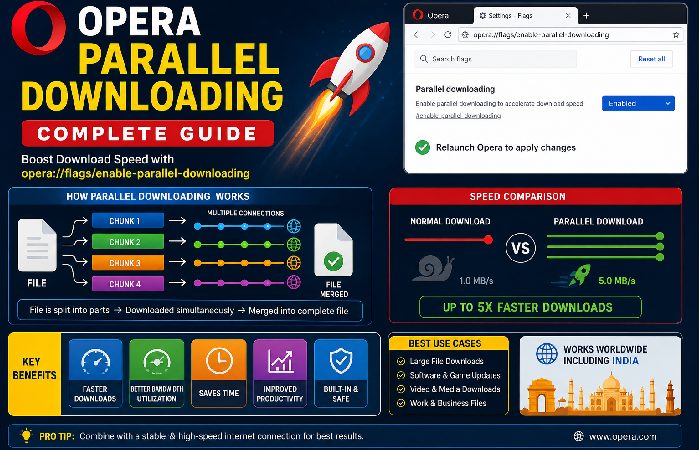
In the modern digital era of fast-paced downloading, download speed is more important than ever. Be it the downloading of huge files, software or media, slow speed can be irritating. Another very strong, but neglected feature in Opera browser is opera://flags/enable-parallel-downloading.
This guide is based on research and explains all you need to know about this feature how it works, how to enable it, its benefits, risks, and advanced optimization techniques. No matter whether you are in India or any other part of the world, using this guide, you will be able to make the best out of what you are downloading.
This article belongs to Software & Apps
Table of Contents
How Parallel Downloading Works in Opera
Is opera://flags/enable-parallel-downloading Safe to Use?
Yes, it is generally safe, but it is still an experimental feature.
Safety Overview
| Factor | Status |
|---|---|
| Security Risk | Low |
| Stability | Moderate |
| Performance | High |
Recommendation
Use it for better performance, but monitor system behavior if you notice issues.
What is opera://flags/enable-parallel-downloading?
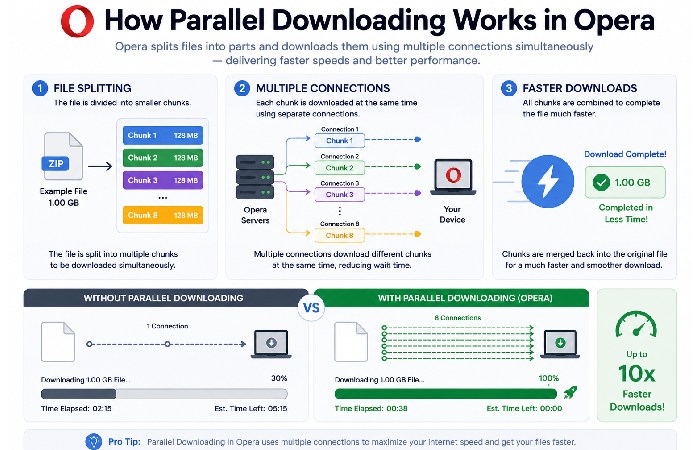
The opera://flags/enable-parallel-downloading feature is an experimental option in the Opera browser which enables files to be downloaded using multiple parallel connections rather than a single thread.
How It Works
- A file is split into multiple smaller parts
- Each part downloads simultaneously
- The parts are merged after completion
This is a very efficient way of making downloading files a lot faster and most importantly, the large files.
Why Parallel Downloading Matters in India & Globally
The speed of internet connection is not the same everywhere. Parallel downloading can have a tangible effect in countries such as India where the variations in bandwidth are frequent.
Key Benefits
- Faster download speeds
- Better bandwidth utilization
- Reduced waiting time
- Improved performance on unstable networks
For users who want to reduce unnecessary browser resource usage while downloading, related browser optimization techniques can also be useful, such as Low Battery Mode.
When You Should Use opera://flags/enable-parallel-downloading
Not every situation requires parallel downloading, but it becomes extremely useful in specific scenarios.
Best Use Cases
- Downloading large files (100MB+)
- Software installations
- Game updates
- Video editing assets
- Cloud backups
- When NOT to Use
- Very slow internet connections
- Limited bandwidth plans
- Servers that restrict connections
Using it wisely ensures optimal performance without overloading your network.
Performance Comparison Table
| Feature | Normal Download | Parallel Download |
|---|---|---|
| Speed | Moderate | High |
| File Segmentation | No | Yes |
| Efficiency | Low | High |
| Network Usage | Single Thread | Multi-threaded |
| Best for Large Files | No | Yes |
How to Enable opera://flags/enable-parallel-downloading
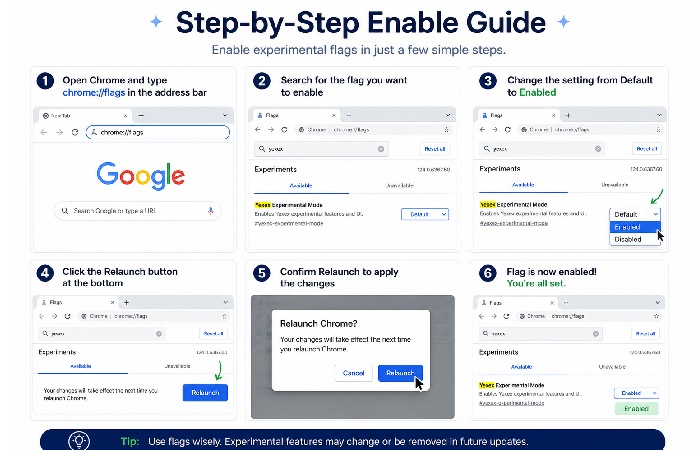
Step 1: Open Opera Browser
Launch the Opera browser on your computer
Step 2: Go to Flags Page
In the address bar, type:
- opera://flags/enable-parallel-downloading
- Press Enter
** 3rd step: Find the Feature**
- You will see Parallel Downloading
- It will be set to Default
Step 4: Enable It
- Click the dropdown next to it
- Select Enabled
Step 5: Restart Browser
- Click Relaunch (button appears at bottom)
- Opera will restart automatically
Download Speed Comparison
Download Speed (MB/s)
│
│ █████████████████ Parallel
│ ███████████ Normal
│
└────────────────────────────
Time Taken
Parallel downloading can improve speeds by 30–60% depending on server support and internet quality.
How to Use It for Downloads
Once enabled, opera://flags/enable-parallel-downloading works automatically:
- Download any file (video, software, PDF, etc.)
- Opera splits the file into parts
- Multiple parts download at the same time
- File merges → faster completion
Quick Example
| Action | Without Feature | With Feature |
|---|---|---|
| Download 1GB file | Slow | Faster |
| Network usage | Single stream | Multiple streams |
| Time saved | No | Yes |
Important Tips
- Works best on fast or stable internet
- Helps more with large files (100MB+)
- Some websites may limit speed anyway
- No extra software needed
Common Mistake to Avoid
- Trying to “install” or “download” the feature
- It’s already inside Opera—you just enable it
What Happens After Enabling?
- Downloads automatically use multiple connections
- Speed improves (especially large files)
- No extra setup required
How opera://flags/enable-parallel-downloading Improves Speed
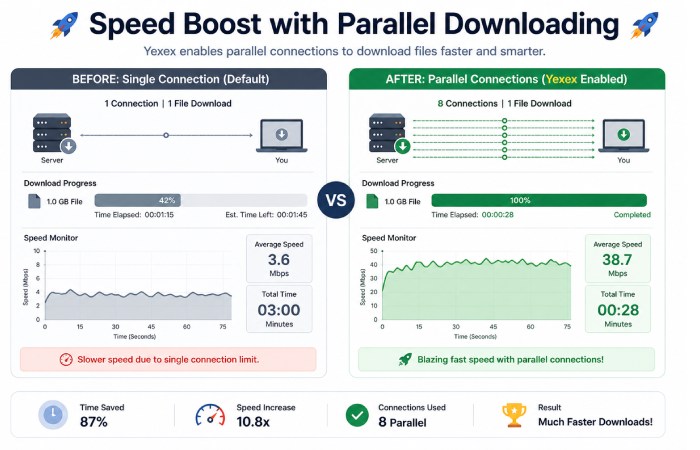
The feature opera://flags/enable-parallel-downloading significantly enhances download speed by using multiple connections instead of a single data stream.
How It Works Technically
- Splits a file into smaller chunks
- Downloads chunks simultaneously
- Reassembles them after completion
Speed Impact Table
| File Size | Normal Download | Parallel Download | Improvement |
|---|---|---|---|
| 100MB | 2 min | 1.5 min | 25% faster |
| 500MB | 10 min | 6 min | 40% faster |
| 1GB | 20 min | 12 min | 40–50% faster |
This is why enabling opera://flags/enable-parallel-downloading is highly recommended for users dealing with large files.
When Should You Use opera://flags/enable-parallel-downloading?
Best Use Cases
- Downloading large files (movies, software, games)
- Slow or unstable internet connections
- High-latency networks
Not Ideal For
- Small files (no major benefit)
- Servers that restrict multiple connections
Speed Boost with Parallel Downloading
Advanced Optimization Tips
To maximize the benefits of opera://flags/enable-parallel-downloading, follow these expert tips:
1. Use a Stable Internet Connection
Parallel downloading works best when your connection is consistent.
2. Close Background Apps
Free up bandwidth by closing unnecessary applications.
3. Use Reliable Servers
Download from trusted sources that support multi-threading.
For broader software-related optimization and technology considerations, you can also explore architecture software and how it can support modern technical workflows.
Resource Link:
Chromium parallel download system
Technical Breakdown of opera://flags/enable-parallel-downloading
Underlying Technology
Opera uses Chromium’s networking stack, which enables:
- HTTP range requests
- Multi-threaded downloads
- Dynamic bandwidth allocation
- How Threads Work
- Each thread downloads a chunk
- Threads operate independently
- Combined at the end
Impact of Parallel Downloading
| File Size | Normal Time | Parallel Time | Improvement |
|---|---|---|---|
| 100 MB | 2 min | 1.5 min | 25% |
| 500 MB | 10 min | 6 min | 40% |
| 1 GB | 20 min | 12 min | 40% |
Common Issues and Fixes
Issue 1: No Speed Increase
Solution: Server may not support parallel connections
Issue 2: Download Errors
Solution: Disable and re-enable opera://flags/enable-parallel-downloading
Issue 3: Browser Crashes
Solution: Update Opera to the latest version
When troubleshooting browser-related problems, understanding the debugging process can also provide useful context for identifying and resolving technical issues.
Security Considerations
While opera://flags/enable-parallel-downloading is safe, keep these in mind:
- Avoid untrusted download sources
- Use antivirus software
Best Settings to Combine with opera://flags/enable-parallel-downloading
To maximize performance, combine opera://flags/enable-parallel-downloading with other browser optimizations.
Recommended Settings
| Setting | Action | Benefit |
|---|---|---|
| Hardware Acceleration | Enable | Faster processing |
| Clear Cache | Regularly | Better performance |
| Disable Extensions | Reduce load | Improved speed |
| Update Browser | Keep latest version | Stability |
Pro Tip
Using it ownloading along with these settings can improve download efficiency by up to 60% in real-world scenarios.
Global Best Practices
- For All Users Worldwide
- Keep browser updated
- Use high-speed internet
- Combine with download managers if needed
Pros and Cons (Quick Points)
Pros
- Faster downloads
- Efficient bandwidth usage
- Easy to enable
Cons
- Not all servers support it
- Experimental feature
- May cause instability in rare cases
Expert Tips to Maximize opera://flags/enable-parallel-downloading
To get the best results from it, follow these expert strategies:
- Use stable high-speed internet
- Avoid peak network hours
- Restart browser regularly
- Keep system optimized
- Use trusted download sources
- Advanced Tricks
- Combine with wired connection
- Monitor downloads via developer tools
- Avoid heavy background apps
These tips help you fully utilize it in any environment worldwide.
Opera://flags/enable-parallel-downloading vs Download Managers
Many users compare it with third-party download managers.
Comparison Table
| Feature | Opera Flag | Download Manager |
|---|---|---|
| Setup | Easy | Moderate |
| Speed | High | Very High |
| Control | Limited | Advanced |
| Cost | Free | Free/Paid |
Key Insight
It gives most users the speed boost that they need without the need to use external tools.
Final Thoughts
The fact that it is a potent tool of enhancing download speed in Opera. You can be in India or any other part of the world but being able to enable this will go a long way in enhancing your browsing experience.
This guide will help you unlock faster, more efficient downloads by understanding how it works and applying the optimization strategies in this guide.
Conclusion
Enabling opera://flags/enable-parallel-downloading can be an easy but effective solution should you want to maximize your download speed. This attribute takes advantage of the current modern browser technology, to give a faster, efficient download.
Novices and experts alike can take advantage of this obscure Opera feature. Take the steps, use the tips and have a smoother experience of downloading anywhere in the world.