
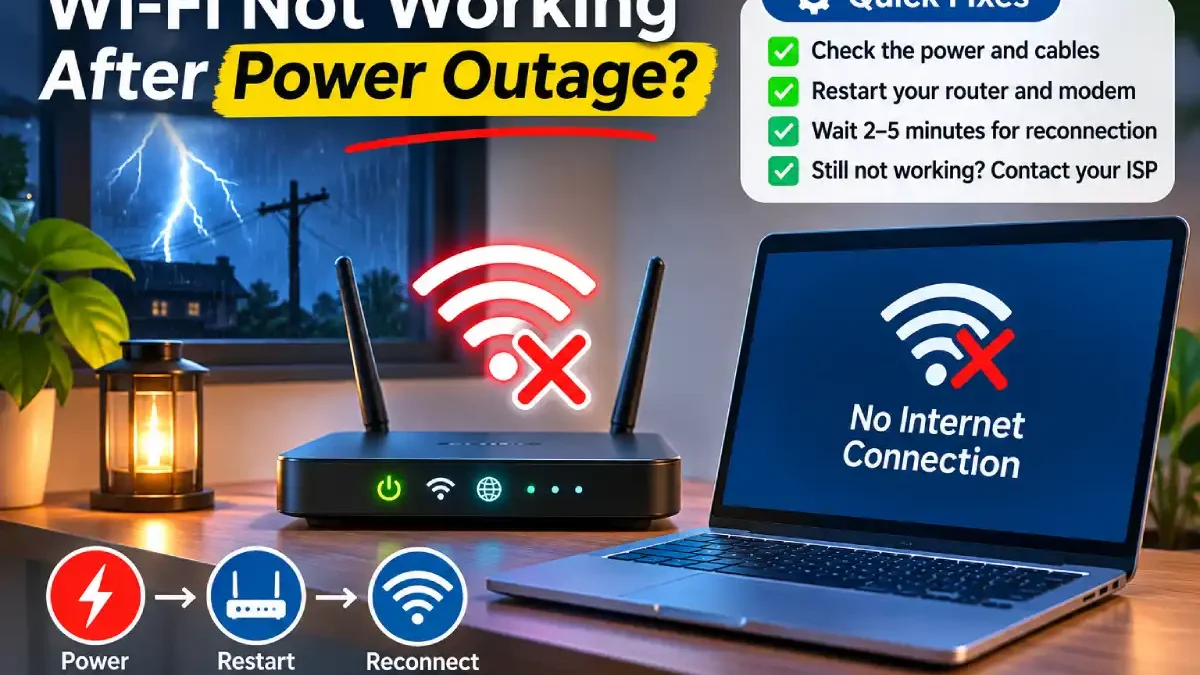
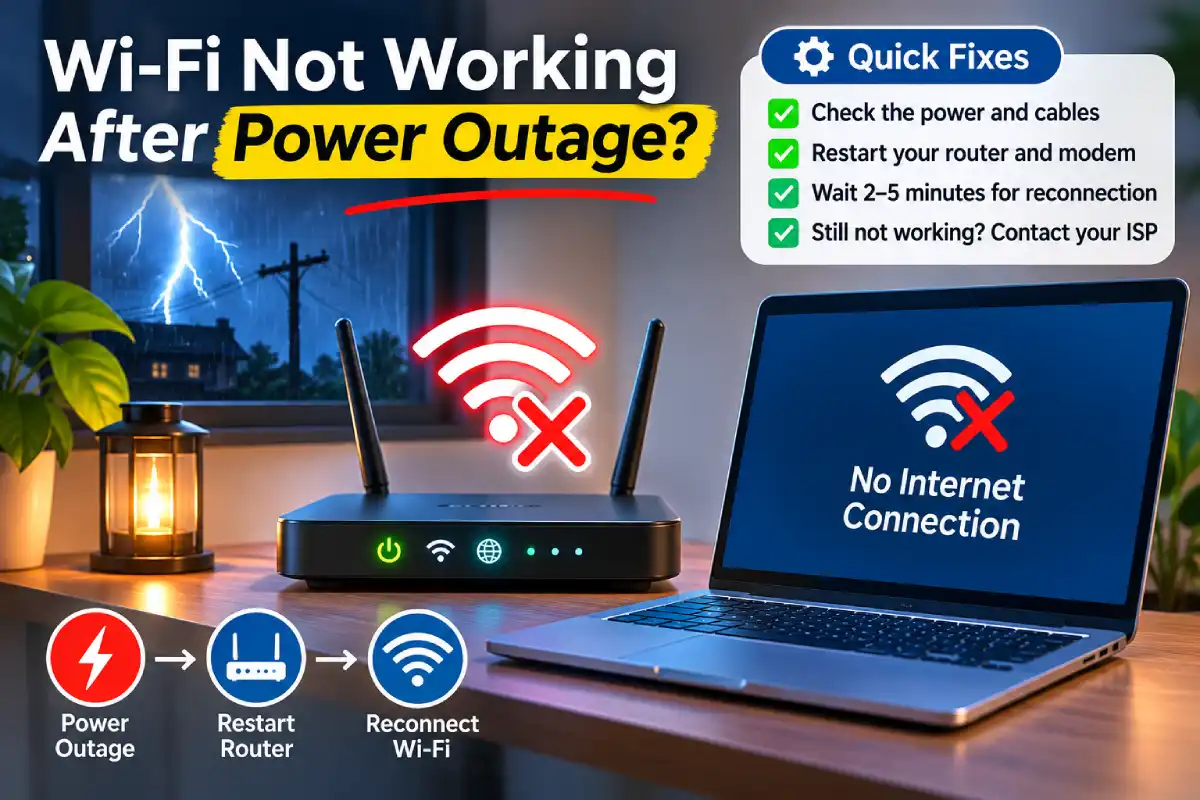
A power outage can interrupt more than just your lights and appliances. When electricity comes back, you may find that your router is switched on but your Wi-Fi isn’t working. Your phone might show that it’s connected to the network, but websites won’t load. In other cases, the router may keep restarting, show a red internet light, or fail to broadcast a Wi-Fi signal altogether.
If your Wi-Fi is not working after a power outage, don’t assume your router is permanently damaged. A sudden loss of electricity can interrupt the connection between your modem, router, and internet service provider. It can also cause temporary software problems or affect the power adapter.
Fortunately, most of these issues can be checked at home without calling a technician immediately.
Let’s look at the common causes and the steps you can follow to restore your internet connection.
Table of Contents
Why Is Wi-Fi Not Working After a Power Outage?
When electricity suddenly goes off, your modem and router lose power without completing their normal shutdown process. Once electricity returns, they may need time to restart and reconnect to your ISP.
Here are some common reasons your Wi-Fi may stop working:
- The modem or router hasn’t restarted properly.
- The power adapter is damaged or not supplying enough power.
- The WAN or Ethernet cable has become loose.
- Your internet service provider is experiencing an outage.
- The router has developed a temporary firmware or configuration problem.
- A power surge has damaged the router or modem.
- The modem hasn’t established a connection with the ISP.
Before changing any settings, check whether your router has power and whether other devices in your home are experiencing the same problem.
1. Restart Modem and Router in Order
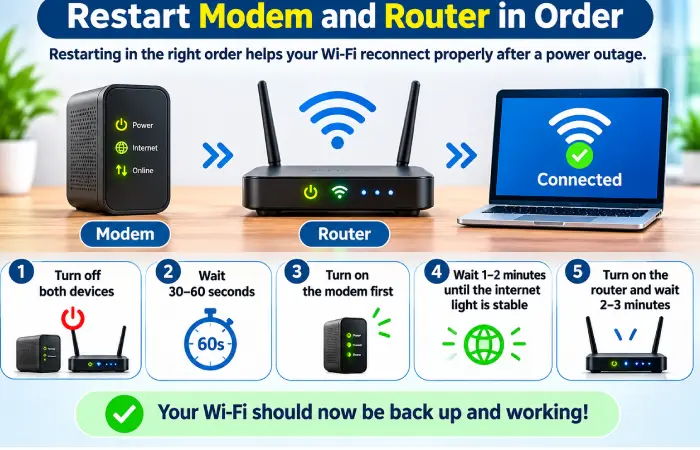
One of the easiest ways to fix Wi-Fi problems after a power outage is to restart your modem and router in the correct order.
If you use separate modem and router devices, they need to establish their connections properly. Restarting them together may sometimes prevent the router from receiving an internet connection immediately.
Follow these steps:
- Turn off your modem and router.
- Unplug both devices from their power sources.
- Wait approximately 30–60 seconds.
- Plug in the modem first.
- Allow the modem a few minutes to reconnect to your ISP.
- Once the modem’s internet or online light becomes stable, turn on the router.
- Wait another two or three minutes for the Wi-Fi network to become available.
Now connect your phone or laptop and try opening a website.
If you have a single modem-router combination device, unplug it, wait around 30 seconds, and reconnect it. Give it a few minutes to complete its startup process.
Why does the restart order matter?
The modem establishes communication with your internet service provider, while the router distributes that connection to your devices. Allowing the modem to connect first gives the router a better chance of receiving a working internet connection.
2. Check Power Adapters and Indicator Lights
After a power outage, your router may turn on but fail to operate correctly. One possible reason is a damaged power adapter or an unstable power supply.
A sudden electrical fluctuation can affect electronic components, including the adapter that supplies power to your networking equipment.
Start by checking the following:
- Make sure the power adapter is firmly connected.
- Check whether the router’s power light is switched on.
- Look for unusual blinking patterns.
- Check whether the adapter or router becomes unusually hot.
- Inspect the power cable for visible damage.
- Try a different wall socket if the current one isn’t working.
Router indicator lights can also help identify the problem.
| Indicator Light | What It Usually Means |
|---|---|
| Power | Shows whether the router is receiving electricity |
| Wi-Fi/WLAN | Indicates whether wireless broadcasting is enabled |
| Internet | Shows the router’s internet connection status |
| WAN | Indicates the connection between the router and modem |
| LAN | Shows wired connections to connected devices |
Light colors and blinking patterns vary between manufacturers, so check your router’s manual for the exact meaning.
If the adapter appears damaged, replace it only with a compatible adapter that matches the manufacturer’s voltage, polarity, and required current specifications. Never use a random adapter simply because its connector fits.
If you notice a burning smell, sparks, damaged wiring, or excessive heat, disconnect the equipment if it is safe to do so and arrange a professional inspection.
3. Inspect WAN Cable Connection
Sometimes the Wi-Fi network appears normally after a power outage, but there is no internet access. This can happen if the WAN or Ethernet cable between your modem and router has become loose.
The WAN port is generally used to connect the router to the modem or incoming internet connection.
How to check the WAN cable:
- Locate the Ethernet cable connecting your modem and router.
- Check that one end is connected to the modem’s LAN port.
- Confirm that the other end is connected to the router’s WAN or Internet port.
- Make sure both connectors are firmly inserted.
- Check the cable for cuts, bends, or visible damage.
- If possible, test with another working Ethernet cable.
If you’re using a fiber internet connection, also check whether the fiber modem or ONT displays a warning light.
For example, a red LOS (Loss of Signal) light on many fiber ONT devices can indicate that the optical signal is missing. The exact meaning depends on the equipment.
Don’t bend, pull, or disconnect the fiber cable unnecessarily. Fiber connections are delicate and may require an ISP technician to inspect them.
4. Confirm ISP Outage Status
Your home networking equipment may be working correctly, but your internet service provider could still be experiencing an outage.
Power cuts can affect network infrastructure outside your home, including distribution equipment, fiber connections, and local network facilities.
Before changing router settings, check whether your ISP has restored service in your area.
You can do this by:
- Visiting your ISP’s official website.
- Checking its official mobile application.
- Contacting customer support.
- Checking official service notifications or outage updates.
- Asking nearby customers using the same provider whether their internet is working.
If you’re using an Indian broadband provider such as JioFiber, Airtel Xstream Fiber, or another local ISP, use its official support channel to check service availability.
When contacting support, explain that your internet stopped working after a power outage. Mention the status of your modem’s power, internet, and LOS indicators, if available.
Important: If your ISP confirms an area-wide outage, resetting your router won’t fix the problem. Wait until the provider restores service before performing additional troubleshooting.
5. Restore Router Settings Only If Needed
If your Wi-Fi is still not working after checking the power supply, cables, and ISP connection, you may need to investigate the router’s configuration.
However, don’t immediately press the factory reset button.
A factory reset removes saved router settings, including your Wi-Fi name, password, security configuration, and sometimes ISP-specific connection details. You may need your ISP’s configuration information to get online again.
Before considering a reset, try these options:
- Restart the router once more.
- Check whether Wi-Fi broadcasting is enabled.
- Confirm that your device is connecting to the correct network.
- Log in to the router’s administration page.
- Check the WAN or internet connection status.
- Look for any configuration errors or firmware alerts.
If the router is functioning but has lost its settings, contact your ISP or router manufacturer for guidance.
Only perform a factory reset when necessary and when you know how to restore the connection afterward.
For ISP-provided routers, it’s usually better to contact customer support before resetting the device.
Additional Tips to Prevent Wi-Fi Problems During Future Power Outages
Although you cannot prevent every power outage, a few precautions can help protect your networking equipment.
Use a UPS for Your Router and Modem
A compatible UPS or mini UPS can keep your modem and router running during short power interruptions. Check the equipment’s power requirements before purchasing one.
Use Proper Surge Protection
A suitable surge protector can help reduce the risk of damage from electrical surges. However, no surge protector guarantees complete protection.
Keep Router Firmware Updated
Manufacturers sometimes release firmware updates to improve stability and fix security issues. Check for updates through the official router administration page or manufacturer support.
Place Your Router in a Well-Ventilated Area
Avoid placing networking equipment in enclosed spaces where heat can build up. Proper ventilation helps maintain stable operation.
Frequently Asked Questions
Why does my Wi-Fi connect but have no internet after a power outage?
Your router may have restarted before the modem re-established its connection with your ISP. It could also be caused by a loose WAN cable, damaged power adapter, or an ISP outage. Restart the modem first, then the router.
Should I reset my router after a power outage?
Not immediately. Start by restarting your modem and router, checking cables, and confirming ISP service availability. A factory reset should be a last resort because it removes saved network configurations.
Why is my router blinking after electricity comes back?
Blinking lights often indicate that the router is starting up, searching for an internet connection, or attempting to establish a connection with the modem. Check your router’s manual to understand the specific light pattern.
Can a power outage damage a Wi-Fi router?
Yes. Electrical surges or unstable power conditions can damage a router, modem, or power adapter. However, a temporary connection problem after an outage doesn’t necessarily mean the equipment is damaged.
How long should I wait for Wi-Fi to return after a power outage?
Most home routers and modems reconnect within a few minutes after power is restored. Some fiber or broadband connections may take longer. If the internet remains unavailable after restarting the equipment, check your ISP’s outage status.
Final Thoughts
If your Wi-Fi is not working after a power outage, don’t rush to replace your router or change its settings. Start with the basics: restart your modem and router in the correct order, inspect the power adapters, and make sure the WAN cable is properly connected.
If everything looks normal but your internet is still unavailable, check whether your ISP is experiencing a service interruption. Only consider restoring router settings if the simpler troubleshooting steps don’t work.
In most cases, these checks will help you identify whether the issue is coming from your home networking equipment or your internet service provider. Taking a few precautions, such as using a compatible UPS and surge protection, can also help reduce problems during future power interruptions.