
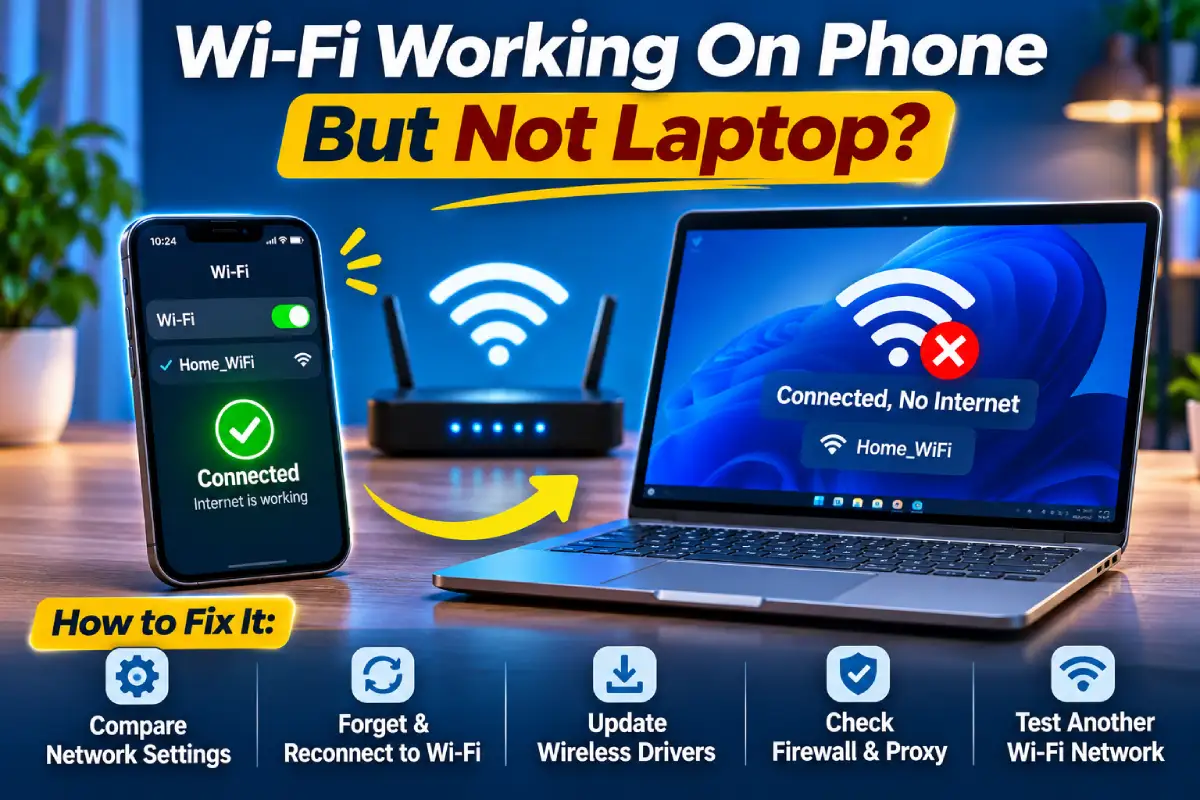
Have you experienced Wi-Fi being the deciding factor to any device that works and the other not? Do you get annoyed that your Wi-Fi works on a smartphone and it doesn’t work on your laptop? It is really annoying when you want to attend a Zoom call, do some work, open websites or download files.
It’s not the internet: What to do when Wi-Fi works on your phone but not your laptop. If the issue is not your internet connection, then you may want to look into your network settings, wireless drivers, firewall, or temporary software faults.
The best part about this is that you don’t have to be a computer guru to resolve this issue. With a couple of quick troubleshooting techniques, you can get your laptop back online.
Here are some of the typical culprits and what you can do to fix it.
Table of Contents
Why Is Wi-Fi Working on Phone But Not Laptop?
If your phone connects to the same Wi-Fi network without any problems, your router and internet service are probably working. However, your laptop may be experiencing a device-specific connection issue.
Here are some possible reasons:
- Incorrect Wi-Fi settings on your laptop.
- Corrupted or outdated wireless network drivers.
- Saved Wi-Fi passwords that are no longer valid.
- Firewall or proxy settings blocking internet access.
- Compatibility issues between your laptop and router.
- Temporary problems with the Windows network adapter.
- Weak wireless signals or interference.
Before changing advanced settings, restart your laptop and turn Wi-Fi off and back on. This simple step can sometimes resolve temporary connection problems.
1. Compare Phone and Laptop Network Settings
Start by checking whether your phone and laptop are connected to the same Wi-Fi network.
Sometimes, a phone automatically connects to a different saved network, while the laptop remains connected to an older or incorrect network.
How to check your network settings:
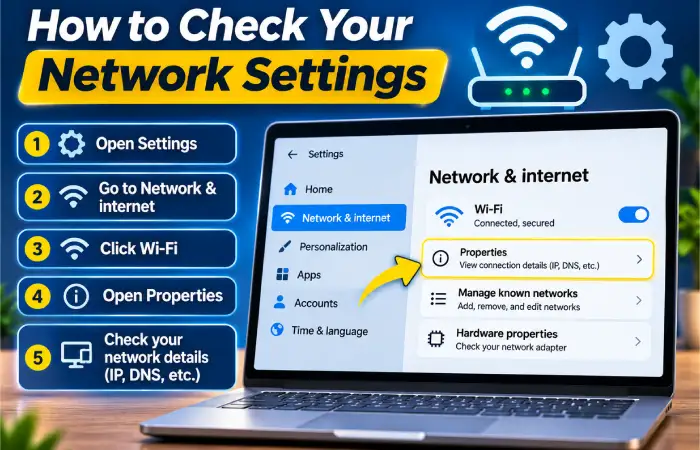
- Go to Wi-Fi in your phone’s settings.
- Verify the name of the Wi-Fi network you’re linked to.
- Launch open Wi-Fi settings.
- Make sure both the devices are on the same network.
- See if the laptop shows the phrase “Connected, no internet.”
For Windows 11, go to Settings > Network & internet > Wi-Fi.
Or the IP address of your laptop Open the Run dialog box (Windows + R), type cmd, and press Enter. And type in the command:
ipconfig
Locate the section named Wireless LAN adapter.
169.254.x.x address If your laptop has a 169.254 address, it is unlikely to be receiving a valid IP address from your router. Try restarting your laptop and router. The problem could be due to your network adapter or router’s DHCP configuration.
Why we do it: Comparing the settings reveals if the problem is due to a wrong connection, IP addresses or something on the laptop itself.
2. Forget and Reconnect to Wi-Fi
Your laptop might have stored an incorrect or outdated Wi-Fi configuration. This can occur after you change your router password, update network settings, or install Windows updates.
Forget this network deletes the previously saved connection info. Connects again to the network when you have the current Wi-Fi password.
Follow these steps on Windows 11:
- Open the Start menu.
- Select Settings.
- Click Network & internet.
- Choose Wi-Fi.
- Open Manage known networks.
- Find your Wi-Fi network.
- Click Forget.
Go back to the list of available Wi-Fi networks, find your network and re-enter your password.
Relax for a sec, while your laptop reestablishes its connection.
If it connects, open a browser and test a few sites to verify that the internet is functioning again.
Note: Ensure you remember the Wi-Fi password before doing the forgetting process; otherwise, you will have trouble connecting back.
3. Update Laptop Wireless Drivers
Wi-Fi is working on the phone but not on the laptop due to outdated or faulty drivers for wireless.
How do I fix my wireless driver? How to Fix a Wireless Driver Issue in Windows Reinstall the Wi-Fi driver. Update the Wi-Fi driver. Rollback the Wi-Fi driver. Reset TCP/IP. Disable then re-enable the wireless LAN driver. Update the Wi-Fi driver software. Turn off and on the device.
How to update your wireless driver:
- Press the right mouse button on the Start button.
- Open Device Manager.
- Expand the Network adapters section.
- Search for your wireless network adapter.
- Right-click the adapter.
- Click Update driver.
- Let me pick from a list of device drivers on my computer.
Adhere to the prompts on the display.
Alternatively, you can visit your laptop manufacturer’s official support website to search for the latest wireless driver and download it. Make sure to select the right driver for your laptop model and Windows version.
If the problem began right after a driver update, open Device Manager, right-click the wireless adapter and select Properties. Under the Driver tab, select Roll Back Driver (if it exists).
Don’t download drivers from unknown sites – they could contain malicious or unwanted content.
4. Check Laptop Firewall and Proxy
Your laptop’s firewall, security software, or proxy configuration may prevent certain applications or websites from accessing the internet.
This can make it appear that your Wi-Fi is connected but not working.
Start by checking your proxy settings.
How to check proxy settings in Windows:
- Open Settings.
- Select Network & internet.
- Click Proxy.
- Review the available proxy settings.
- Look for an unintended manual proxy server if you’re not consciously using a proxy.
Disable any proxy setup you don’t want. Do not modify any options that are managed by your workplace, school, or group without being granted permission.
Next, check your firewall.
- Open Windows Security.
- Select Firewall & network protection.
- Review the active network profile.
- Check whether a required application is being blocked.
Never turn off Windows Defender Firewall long term just to troubleshoot the connection. Review its allowed-apps settings, or see if there’s a particular security notification.
No need to disconnect from the internet if you are using an antivirus other than the default. If you have third-party antivirus software, disconnecting is unnecessary when editing its settings. Test whether it is blocking your network connection or browser, Firewall or Web protection.
5. Test Another Wireless Network
If your laptop still cannot access the internet, connect it to another wireless network.
For example, you can use your phone’s mobile hotspot for a short test.
How to test using a mobile hotspot:
- Enable the mobile hotspot on your phone.
- Open Wi-Fi settings on your laptop.
- Find your phone’s hotspot name.
- Connect using the hotspot password.
- Open a browser and check whether websites load.
The result can help narrow down the cause.
| Test Result | What It May Indicate |
| Laptop connects to phone hotspot | Possible compatibility or configuration issue with your home router |
| Laptop cannot connect to any Wi-Fi | Possible laptop adapter, driver, or operating system problem |
| Laptop connects but websites don’t load | Possible DNS, proxy, firewall, or internet configuration issue |
| Other devices also lose internet | Possible router or internet service provider problem |
When your laptop connects to the mobile hotspot but not to your home Wi-Fi, review your home router’s security mode, frequency, and device whitelist. Compatibility issues can occur with certain Wi-Fi bands or security modes and older laptops.
Additional Fixes If Your Laptop Still Has No Internet
If the previous solutions don’t work, try these additional troubleshooting steps.
Restart the Wireless Network Adapter
- Press Windows + R.
- Type ncpa.cpl and press Enter.
- Find your Wi-Fi connection.
- Right-click it and select Disable.
- Wait approximately 10 seconds.
- Right-click it again and select Enable.
This refreshes the wireless adapter without restarting your entire computer.
Flush the DNS Cache
In some cases, you may experience issues opening websites because you have a corrupted DNS cache.
Open Command Prompt and run:
ipconfig /flushdns
You should see a message confirming the flush of the DNS resolver cache.
Run Windows Network Troubleshooter
Open Settings > System > Troubleshoot > Other troubleshooters. Locate Network and Internet or Network Adapter, depending on your Windows version, and click Run the troubleshooter.
Proceed with the guidance provided on the display.
Reset Network Settings
Try the Windows network reset option if nothing else helps.
From Settings > Network & internet > Advanced network settings > Network reset.
This will reinstall network adapters and reset network settings. You may have to reinstall your VPN software and reconnect to saved networks afterward. Only use this option after the more simple fixes do not work.
When Should You Contact Technical Support?
If your laptop cannot connect to any wireless network, even after updating drivers and resetting network settings, the Wi-Fi adapter may have a hardware problem.
Consider contacting a qualified technician if:
- Your wireless adapter is missing from Device Manager.
- Wi-Fi repeatedly disconnects across different networks.
- The laptop cannot detect nearby wireless networks.
- The wireless adapter shows an error code in Device Manager.
- Your laptop has suffered physical damage or liquid exposure.
If the problem happens only with your home router, contact your internet service provider or router manufacturer for further assistance.
Frequently Asked Questions
Why does Wi-Fi work on my phone but not my laptop?
This is often due to issues with your laptop, including aged wireless drivers, misconfigured network settings, firewall blocks and stored Wi-Fi network information issues. Your router could be still supplying your network with internet.
Why does my laptop say connected but no internet?
Your laptop is connected to the router but cannot access the internet. There is a DNS error, IP address is wrongly configured, proxy settings or firewall are blocking.
Can an outdated Wi-Fi driver cause internet problems?
Yes. If a wireless driver is corrupt or old, it can cause connection issues, unable to see signals, or connect properly to your laptop.
Should I reset my router if Wi-Fi works on my phone?
Not right now. First, reboot your laptop, disconnect and reconnect to Wi-Fi, and update your wireless driver. Check the router if other devices are also having issues.
Does network reset delete my files?
No. Personal documents, photos and data files are not typically erased using Windows network reset. It might remove some network configurations and require you to reconnect to Wi-Fi and reinstall networking-related programs.
Final Thoughts
If Wi-Fi works on your mobile but doesn’t on your laptop, then a Wi-Fi outage isn’t your issue but a problem with your network settings. Here are the steps you should take to fix it: Compare your network settings, forget and reconnect to Wi-Fi and update your wireless drivers.
If those measures don’t clear the problem, check your firewall and proxy settings or try your laptop on a different wireless network. These tests can tell you whether the culprit is your laptop, your router, or your internet connection.
Most of the time, you can get your laptop to connect to Wi-Fi by doing a bit of troubleshooting.