
The Windows 11 taskbar is something most people use dozens of times a day. It helps you open applications, switch between windows, access the Start menu, check notifications, and manage background programs. So, when the taskbar suddenly stops responding, even simple computer tasks can become frustrating.
You might notice that clicking the Start button does nothing, pinned applications will not open, or the taskbar freezes completely. Sometimes, the taskbar disappears and returns after a few seconds. These problems can happen after a Windows update, because of a frozen Windows Explorer process, damaged system files, or incorrect settings.
If your Windows 11 taskbar is not responding, try the solutions below one at a time. Most of these fixes do not require advanced technical knowledge.
Table of Contents
Why Is the Windows 11 Taskbar Not Responding?
Before changing anything, it helps to understand what might be causing the problem.
Some common reasons include:
- Windows Explorer has frozen: The Explorer process manages the taskbar, desktop, and File Explorer interface.
- Incorrect taskbar settings: Certain configuration changes can affect how taskbar elements behave.
- Pending Windows updates: Missing fixes or an incomplete update may cause interface problems.
- Corrupted system files: Damaged Windows components can prevent the taskbar from working properly.
- User profile problems: A damaged Windows user profile may cause taskbar features to stop responding.
- Conflicting applications: Some third-party customization tools or background applications can interfere with the taskbar.
Start with the simpler fixes before moving to system repairs or profile changes.
1. Restart Windows Explorer
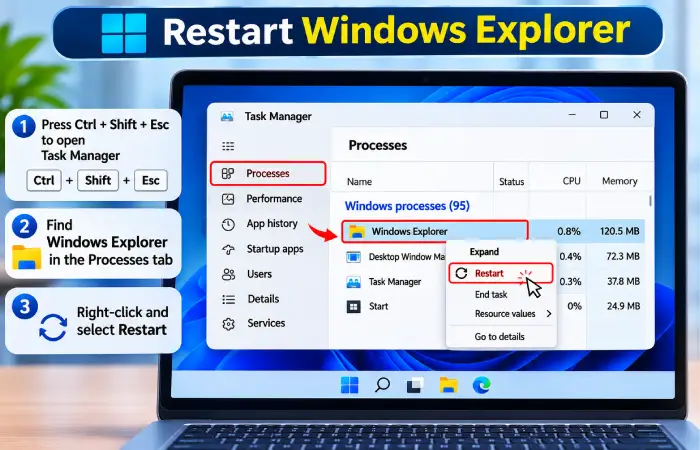
Windows Explorer is responsible for several parts of the Windows interface, including the desktop, taskbar, and Start menu. If its process becomes unresponsive, the taskbar may stop accepting clicks.
Restarting Windows Explorer is one of the quickest fixes to try.
Follow these steps:
- Press Ctrl + Shift + Esc to open Task Manager.
- If Task Manager opens in a simplified view, click More details.
- Select the Processes tab.
- Find Windows Explorer in the list.
- Right-click it and select Restart.
- Wait a few seconds for the desktop and taskbar to refresh.
<caption>Restart Windows Explorer through Task Manager to refresh the Windows interface.</caption>
Your screen may briefly disappear or flicker while Windows Explorer restarts. This is normal. Your open applications should generally remain running.
If Windows Explorer is missing from the process list, you can start it manually:
- Open Task Manager.
- Select Run new task.
- Type
explorer.exe. - Press Enter.
Check whether the Start button, pinned applications, and system tray are working again.
2. Check Taskbar Settings
Sometimes the taskbar appears frozen because of a configuration issue rather than a serious Windows problem.
For example, automatic hiding may make the taskbar disappear until you move your mouse to the bottom of the screen. Certain taskbar elements may also be disabled.
To review the settings:
- Press Windows + I to open Settings.
- Select Personalization.
- Click Taskbar.
- Review the available taskbar options.
- Check whether the elements you need are enabled.
Pay particular attention to these settings:
- Taskbar items: Check whether Search, Task View, Widgets, or other options are configured as expected.
- System tray icons: Review which application icons appear near the clock.
- Taskbar behaviors: Check whether automatically hiding the taskbar is enabled.
- Multiple displays: If you use more than one monitor, review how the taskbar appears across displays.
You can also right-click an empty area of the taskbar and select Taskbar settings, if right-clicking is working.
If the taskbar remains unresponsive, move on to the Windows update checks.
3. Install Pending Windows Fixes
Microsoft regularly releases updates to fix bugs, improve security, and resolve compatibility problems. If your taskbar stopped working after an update or has been unreliable for some time, installing pending updates may help.
How to check for Windows updates:
- Press Windows + I.
- Select Windows Update.
- Click Check for updates.
- Allow Windows to search for available updates.
- Install relevant updates and restart your computer when requested.
Also check the Advanced options section for optional updates. Driver updates may sometimes help if the problem is related to display or system compatibility.
However, avoid installing every optional driver update without checking whether it applies to your device. Use your computer manufacturer’s official support website when you need a specific driver.
After restarting, test the taskbar again. If the problem began after a particular update, check its update history before considering uninstalling it.
4. Repair System Files
If restarting Windows Explorer and installing updates do not solve the problem, damaged Windows system files may be responsible.
Windows includes two built-in repair tools: DISM and System File Checker (SFC). They can help identify and repair problems affecting Windows components.
Step 1: Run DISM
- Press Ctrl + Shift + Esc to open Task Manager.
- Select Run new task.
- Type
cmd. - Check Create this task with administrative privileges.
- Click OK.
- Enter the following command:
DISM /Online /Cleanup-Image /RestoreHealth
- Press Enter and wait for the scan to finish.
DISM checks the Windows component store and attempts to repair problems. The process may take several minutes and may require an internet connection.
Step 2: Run SFC
After DISM completes, enter:
sfc /scannow
Press Enter and allow the scan to reach 100%.
SFC checks protected system files and attempts to replace damaged versions with healthy copies.
Once both commands finish, restart your computer and check whether the taskbar works normally.
Do not close the Command Prompt while either scan is running. If a repair fails, note the message before trying additional troubleshooting steps.
5. Test a New User Profile
If the taskbar still does not respond, the issue may be limited to your Windows user account.
A corrupted user profile can affect the Start menu, taskbar, desktop settings, and other Windows features. Testing another account helps determine whether the problem affects the entire system or only your existing profile.
Create a temporary local account:
- Open Settings using Windows + I.
- Select Accounts.
- Choose Other users.
- Click Add account.
- Follow the instructions to create a new account.
- Sign out of your current account.
- Sign in using the new account.
Now check whether the taskbar responds normally.
If it works in the new account, your original user profile may be damaged. You can consider moving your personal files to the new profile after backing them up and checking that your applications and settings are available.
Do not immediately delete your old account. Make sure you have copied important documents, desktop files, downloads, and other personal data first.
Additional Tips to Prevent Taskbar Problems
Once the taskbar starts working again, a few simple habits can help reduce the chance of similar problems.
- Keep Windows updated: Install important security and reliability updates.
- Avoid untrusted customization tools: Third-party taskbar modification applications can sometimes create conflicts.
- Restart your PC regularly: This can clear temporary interface problems.
- Check background applications: Close programs you do not need, especially if they are using excessive resources.
- Keep storage space available: A nearly full system drive can contribute to wider Windows performance problems.
If the taskbar freezes frequently, check whether the issue occurs after opening a particular application. This may help identify conflicting software.
Frequently Asked Questions
Why does my Windows 11 taskbar stop responding?
Common causes include a frozen Windows Explorer process, damaged system files, pending updates, incorrect taskbar settings, or a corrupted user profile.
How do I open Task Manager if the taskbar is frozen?
Press Ctrl + Shift + Esc. This keyboard shortcut opens Task Manager without using the taskbar or Start menu.
Will restarting Windows Explorer close my applications?
Normally, restarting Windows Explorer refreshes the desktop and taskbar without closing your other running applications. The screen may briefly flicker while the process restarts.
Can a Windows update fix an unresponsive taskbar?
Yes. Microsoft may release updates that address taskbar bugs and other interface problems. Check Windows Update for available fixes.
Should I reset Windows 11 if the taskbar is not working?
A full reset should be a last resort. Try restarting Explorer, checking settings, installing updates, repairing system files, and testing another user profile first.
Final Thoughts
A Windows 11 taskbar not responding problem can interrupt your normal workflow, but it does not always mean something serious is wrong with your computer. In many cases, restarting Windows Explorer is enough to restore normal operation.
If that does not work, check your taskbar settings, install pending Windows fixes, and run DISM and SFC scans. Testing a new user profile can help identify account-related problems.
Try each solution separately and check the taskbar after every step. This approach makes troubleshooting easier and helps you avoid unnecessary changes to your Windows installation.